

 If you need to add a large number of mailboxes at once, you can upload a CSV file instead of entering them one by one. This is also useful if you want to sync your tracked mailbox list with an export from Google Workspace or Microsoft 365.
CSV format
Your CSV file should contain a list of email addresses. Email Meter is flexible about the format:- Simple list: one email address per line, no header needed
- Single column with header: the header row is automatically detected and skipped
- Multi-column files: if your file has multiple columns (like a Google Workspace or Microsoft 365 export), Email Meter will find the column that contains email addresses
Only
.csv files are accepted, with a maximum file size of 5 MB.Step-by-step walkthrough
1
Open the mailbox settings
Go to Settings > Mailboxes and click
+ Add Mailboxes. In the Add mailboxes screen, select the Import via CSV tab.2
Upload your CSV
Drag and drop your file or click to browse. Once uploaded, you’ll see a summary of how many email addresses were found and how many rows were invalid (if any).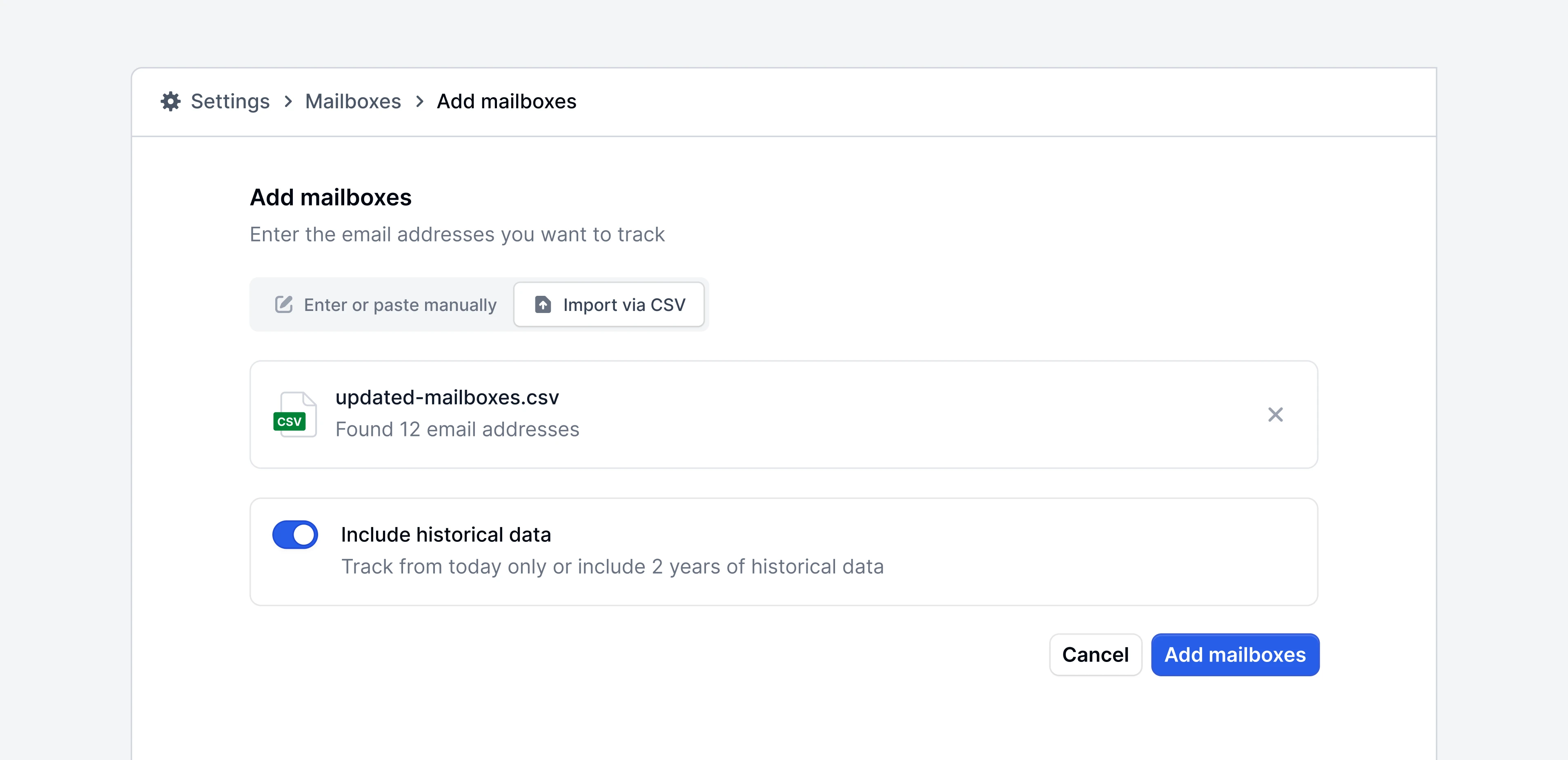 Use the toggle to choose whether you want to load historical data for the new mailboxes. If enabled, up to two years of past data will be loaded. If not, only emails sent and received after adding the mailbox will be tracked.
Use the toggle to choose whether you want to load historical data for the new mailboxes. If enabled, up to two years of past data will be loaded. If not, only emails sent and received after adding the mailbox will be tracked.3
Choose your import mode
You’ll be asked to choose between two modes: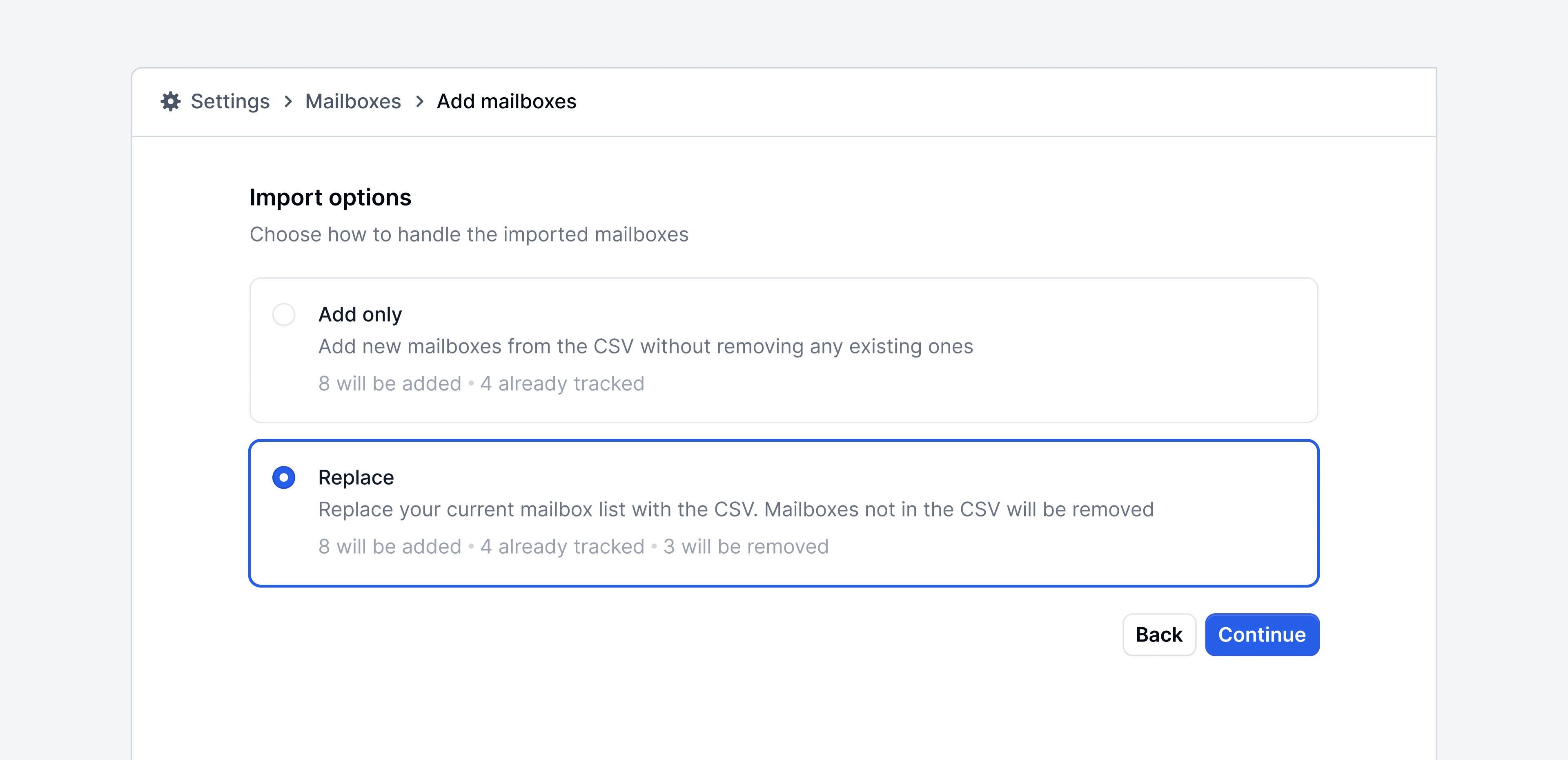
- Add only: appends the new mailboxes from your CSV to your existing list. Mailboxes that are already tracked are simply skipped.
- Replace: syncs your tracked mailbox list to match the CSV. New mailboxes are added, and any currently tracked mailboxes that are not in the CSV are removed. Historical data for removed mailboxes is retained by default.
4
Wait for validation
Email Meter checks API access for each new mailbox to make sure it can be tracked. This runs automatically and you’ll see a progress indicator while it completes.
5
Review and confirm
Once validation finishes, you’ll see the results grouped into categories: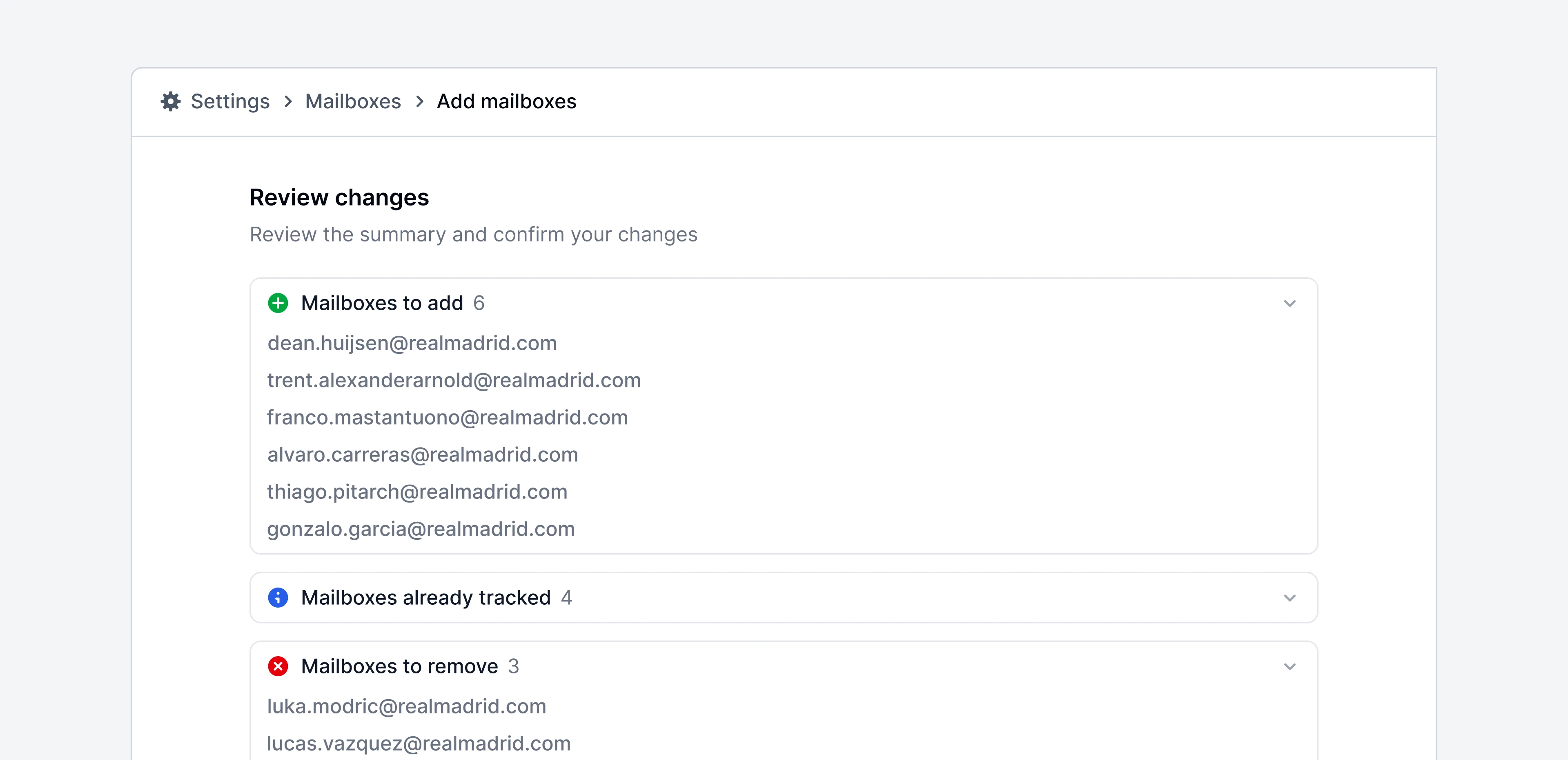 Review the results and click confirm to apply the changes.
- Ready to add: mailboxes that passed validation and will be added
- Already tracked: mailboxes that are already in your list (skipped)
- Needs attention: mailboxes that couldn’t be validated, usually because Email Meter doesn’t have API access to them
- To remove: mailboxes that will be removed because they’re not in your CSV (replace mode only)
Review the results and click confirm to apply the changes.Error handling
During validation, some mailboxes may not pass. Common reasons include:- No API access: Email Meter hasn’t been granted access to that mailbox. This usually needs to be resolved by your Google or Microsoft domain administrator.
- Domain not allowed: the email address belongs to a domain that isn’t part of your Email Meter workspace.
- Invalid email format: the row in the CSV didn’t contain a valid email address. These rows are skipped during parsing.
Frequently asked questions
Does replace mode delete historical data for removed mailboxes?
Does replace mode delete historical data for removed mailboxes?
No. When mailboxes are removed through replace mode, their historical data is retained by default. The mailboxes simply stop collecting new data. They also stop counting towards your plan’s mailbox limit.
Can I upload an export from Google Workspace or Microsoft 365 directly?
Can I upload an export from Google Workspace or Microsoft 365 directly?
Yes. Email Meter auto-detects common header names like
email, email address, mailbox, and user, and it handles multi-column files by finding the column with valid email addresses. You can usually upload these exports without any modifications.What happens with duplicate emails in my CSV?
What happens with duplicate emails in my CSV?
Duplicates are automatically removed during parsing. Each email address is only processed once.
When will data appear for newly added mailboxes?
When will data appear for newly added mailboxes?
Data for newly added mailboxes will appear on your dashboard the next day at 12:01 AM local time. If you enabled historical data, the full two-year backfill may take longer depending on the volume of emails.