> ## Documentation Index
> Fetch the complete documentation index at: https://docs.enterprise.emailmeter.com/llms.txt
> Use this file to discover all available pages before exploring further.
# Track mailboxes
> Manage the mailboxes you are tracking statistics for
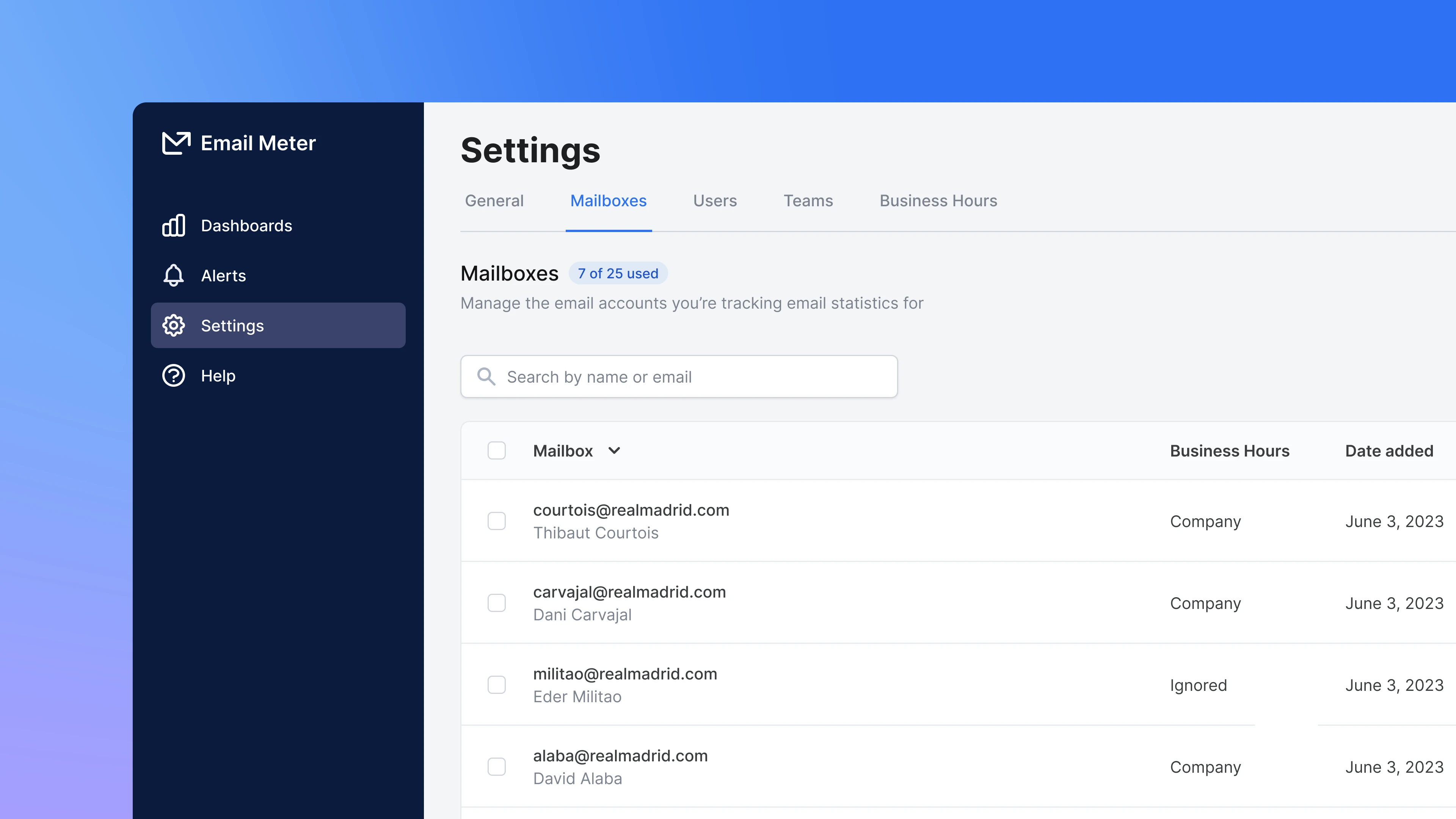 Mailboxes are the email accounts that Email Meter tracks to generate email statistics on.
You can manage the mailboxes that you are tracking from the [Settings > Mailboxes](https://enterprise.emailmeter.com/settings/mailboxes) page.
Mailboxes should not be confused with users, which are the people that can log in to the product to see statistics and manage settings.
## Basics
On [Settings > Mailboxes](https://enterprise.emailmeter.com/settings/mailboxes), you'll find a list of currently tracked mailboxes.
Mailboxes are the email accounts that Email Meter tracks to generate email statistics on.
You can manage the mailboxes that you are tracking from the [Settings > Mailboxes](https://enterprise.emailmeter.com/settings/mailboxes) page.
Mailboxes should not be confused with users, which are the people that can log in to the product to see statistics and manage settings.
## Basics
On [Settings > Mailboxes](https://enterprise.emailmeter.com/settings/mailboxes), you'll find a list of currently tracked mailboxes.
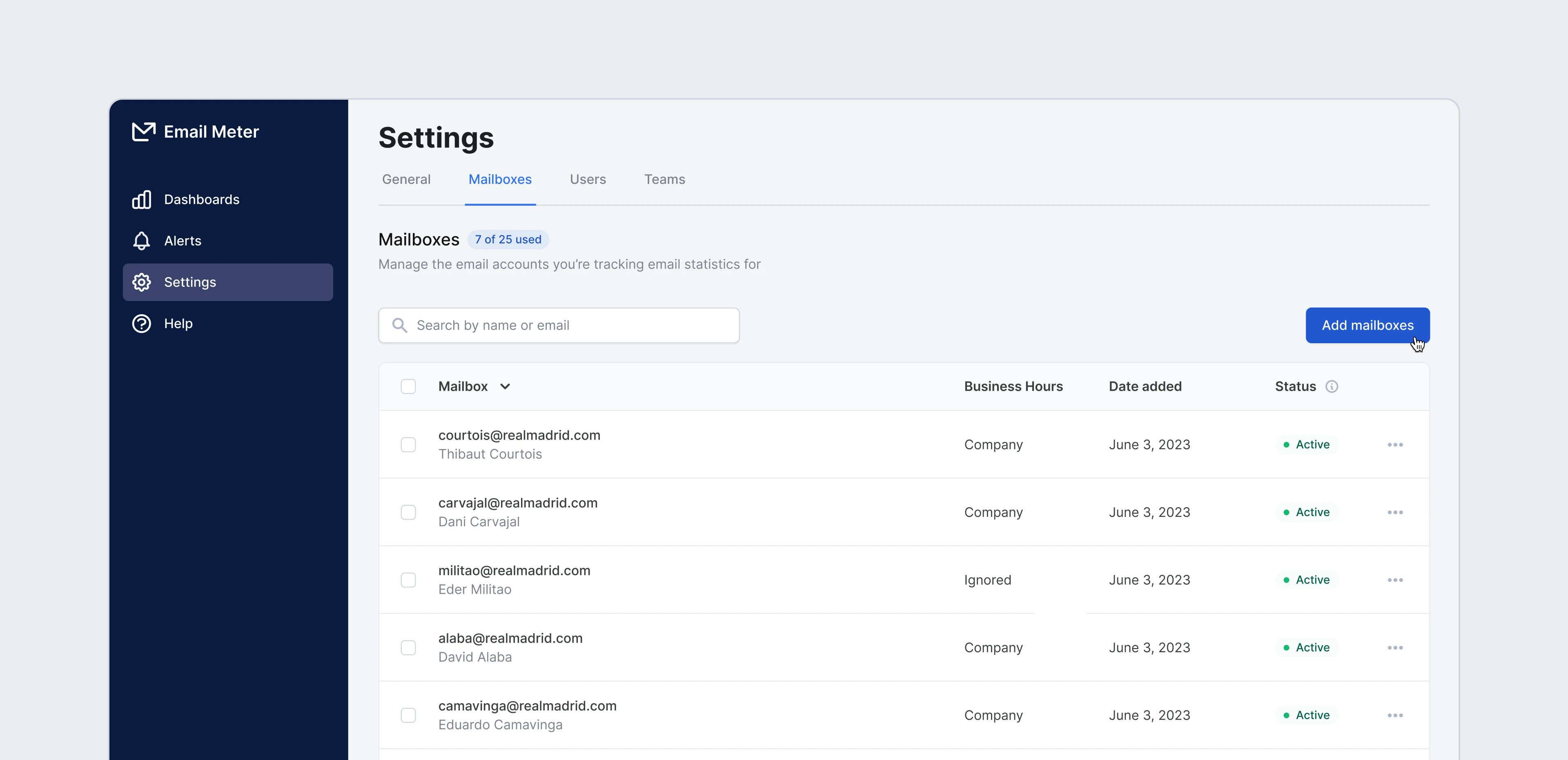 They are displayed in a table with the following fields:
| Field | Description |
| ------------------ | ------------------------------------------------------------------------------------------------------------------------------ |
| **Mailbox** | The email address being tracked |
| **Business Hours** | Indicates the business hours settings that this mailbox uses. Read more about this [here](/workspace-setup/business-hours). |
| **Date added** | When the mailbox was added to Email Meter |
| **Status** | This will be `Active` if there is no problem, `Loading` if historical data is being loaded, or `Inactive` if there's any error |
At the top, a badge displays the number of tracked mailboxes and the maximum you can track based on your plan. If you've reached your limit and want to increase it, please get in touch with your Business Intelligence Consultant.
### Track mailboxes
Go to [Settings > Mailboxes](https://enterprise.emailmeter.com/settings/mailboxes) to add new tracked mailboxes.
You can add new mailboxes by clicking `+ Add Mailboxes` on the page. When adding a new mailbox, you can directly input the mailboxes that you want to track or paste a list. You can also [import mailboxes from a CSV file](/workspace-setup/track-mailboxes-csv) if you need to add them in bulk.
They are displayed in a table with the following fields:
| Field | Description |
| ------------------ | ------------------------------------------------------------------------------------------------------------------------------ |
| **Mailbox** | The email address being tracked |
| **Business Hours** | Indicates the business hours settings that this mailbox uses. Read more about this [here](/workspace-setup/business-hours). |
| **Date added** | When the mailbox was added to Email Meter |
| **Status** | This will be `Active` if there is no problem, `Loading` if historical data is being loaded, or `Inactive` if there's any error |
At the top, a badge displays the number of tracked mailboxes and the maximum you can track based on your plan. If you've reached your limit and want to increase it, please get in touch with your Business Intelligence Consultant.
### Track mailboxes
Go to [Settings > Mailboxes](https://enterprise.emailmeter.com/settings/mailboxes) to add new tracked mailboxes.
You can add new mailboxes by clicking `+ Add Mailboxes` on the page. When adding a new mailbox, you can directly input the mailboxes that you want to track or paste a list. You can also [import mailboxes from a CSV file](/workspace-setup/track-mailboxes-csv) if you need to add them in bulk.
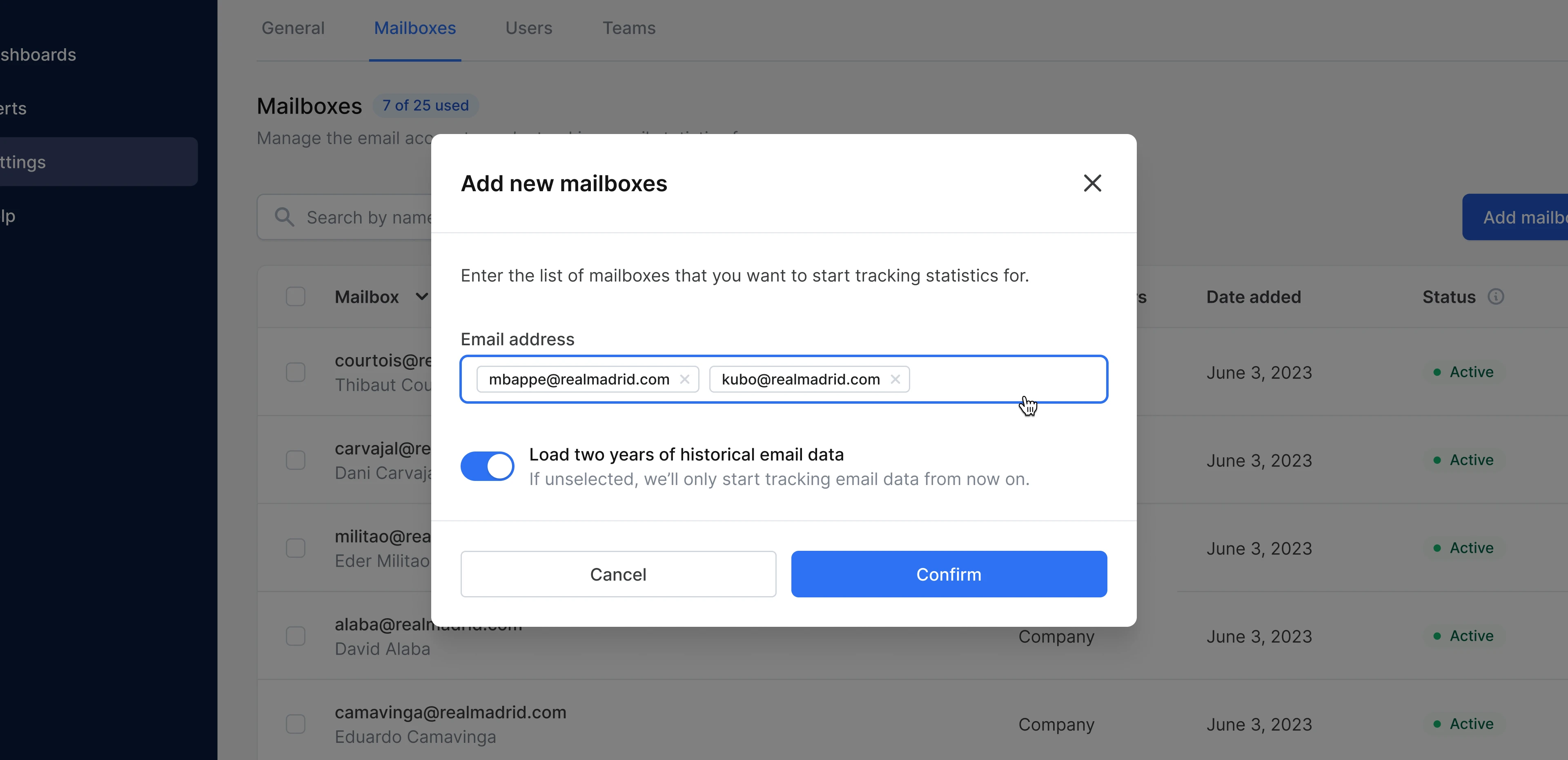 Use the toggle to select if you want to load historical data for the mailbox or mailboxes that you're adding. If you choose to load historical data, two years of data will be loaded by default. If not, no historical data will be loaded and statistics will be generated for emails sent and received after the mailbox has been added only.
### Remove mailboxes
To remove a mailbox, click on the three-dot menu next to their name and choose `Remove mailbox`.
Use the toggle to select if you want to load historical data for the mailbox or mailboxes that you're adding. If you choose to load historical data, two years of data will be loaded by default. If not, no historical data will be loaded and statistics will be generated for emails sent and received after the mailbox has been added only.
### Remove mailboxes
To remove a mailbox, click on the three-dot menu next to their name and choose `Remove mailbox`.
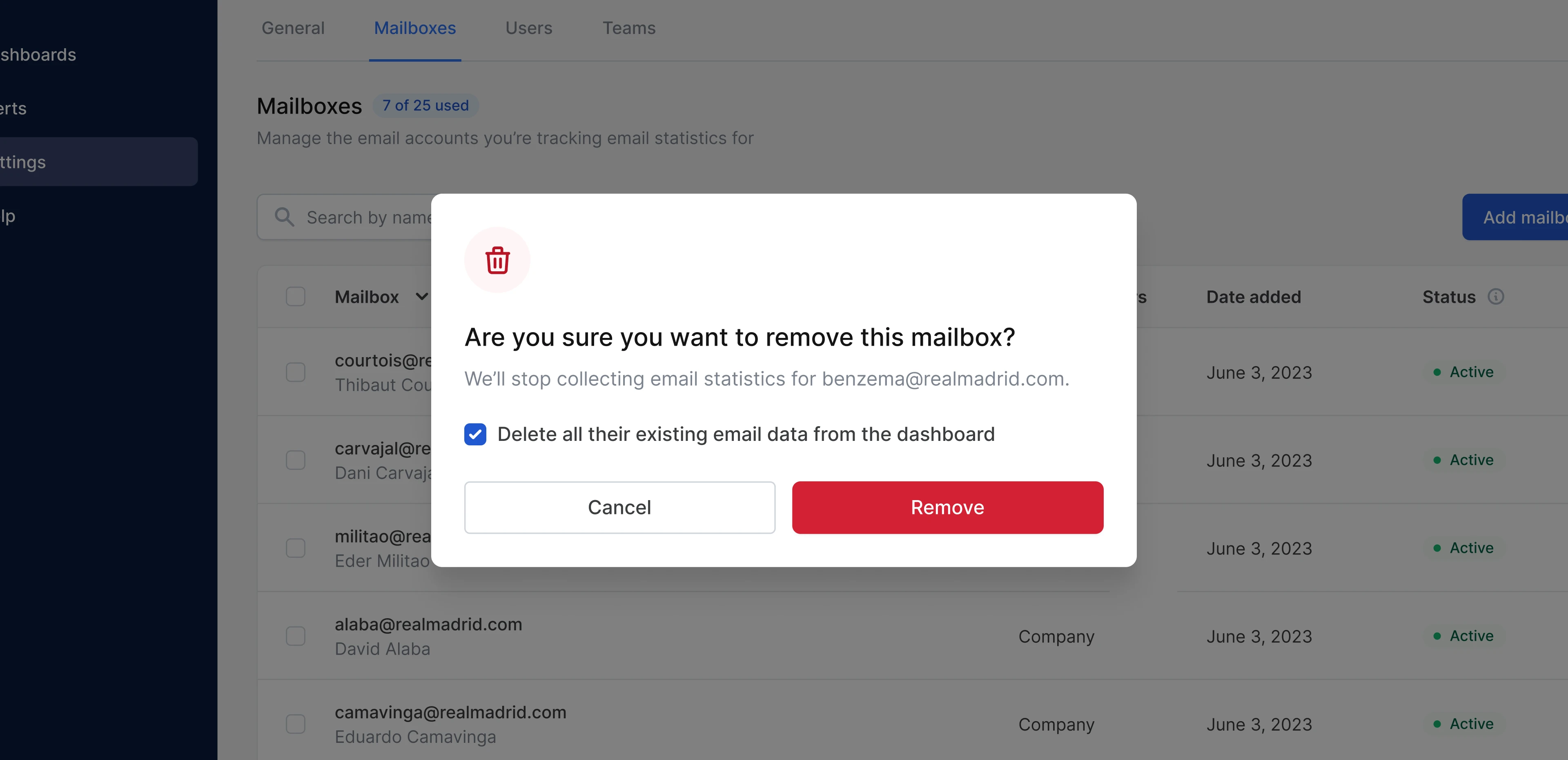 A modal will open to confirm the action. This modal will also give you the option to keep or remove the data related to this mailbox from your email statistics dashboard. Even if you choose to keep their historical data on your dashboard, removed mailboxes are no longer counted as a seat for limit purposes.
### Remove mailboxes in bulk
You can also use the checkboxes next to the name of each mailbox to select multiple mailboxes and remove them in bulk.
## Frequently asked questions
Google Groups and Microsoft Groups are not treated as individual mailboxes and cannot be tracked via API by Email Meter. However, if you're tracking the end-mailboxes where emails sent to those Groups are being delivered, they will show up in your dashboard. This means we can create custom reports to analyze workflow related to Google and Microsoft Groups. Just get in touch with your Business Intelligence Consultant if you're interested.
No, just the shared/delegated mailbox itself. Every email sent from the shared/delegated mailbox comes with a field in the email metadata that tells us which agent sent it, even if that agent's mailbox isn't tracked by Email Meter. However, the proper settings need to be activated on your domain. You can read more about it [here](link-to-the-relevant-section).
After adding new mailboxes, their data won't appear on your dashboard until the next day at 12:01AM local time.
This typically happens when access to that mailbox has been revoked from your Google/Microsoft admin panel. Please get in touch with your Business Intelligence Consultant to investigate further.
Although Email Meter is typically installed domain-wide, some companies decide to restrict Email Meter's access to certain mailboxes only. If Email Meter hasn't been granted access to a certain mailbox, you won't be able to add it. Please get in touch with your Business Intelligence Consultant to investigate further.
A modal will open to confirm the action. This modal will also give you the option to keep or remove the data related to this mailbox from your email statistics dashboard. Even if you choose to keep their historical data on your dashboard, removed mailboxes are no longer counted as a seat for limit purposes.
### Remove mailboxes in bulk
You can also use the checkboxes next to the name of each mailbox to select multiple mailboxes and remove them in bulk.
## Frequently asked questions
Google Groups and Microsoft Groups are not treated as individual mailboxes and cannot be tracked via API by Email Meter. However, if you're tracking the end-mailboxes where emails sent to those Groups are being delivered, they will show up in your dashboard. This means we can create custom reports to analyze workflow related to Google and Microsoft Groups. Just get in touch with your Business Intelligence Consultant if you're interested.
No, just the shared/delegated mailbox itself. Every email sent from the shared/delegated mailbox comes with a field in the email metadata that tells us which agent sent it, even if that agent's mailbox isn't tracked by Email Meter. However, the proper settings need to be activated on your domain. You can read more about it [here](link-to-the-relevant-section).
After adding new mailboxes, their data won't appear on your dashboard until the next day at 12:01AM local time.
This typically happens when access to that mailbox has been revoked from your Google/Microsoft admin panel. Please get in touch with your Business Intelligence Consultant to investigate further.
Although Email Meter is typically installed domain-wide, some companies decide to restrict Email Meter's access to certain mailboxes only. If Email Meter hasn't been granted access to a certain mailbox, you won't be able to add it. Please get in touch with your Business Intelligence Consultant to investigate further.