> ## Documentation Index
> Fetch the complete documentation index at: https://docs.enterprise.emailmeter.com/llms.txt
> Use this file to discover all available pages before exploring further.
# Tracking shared mailboxes
> Set everything up to track individual agent performance within a shared mailbox
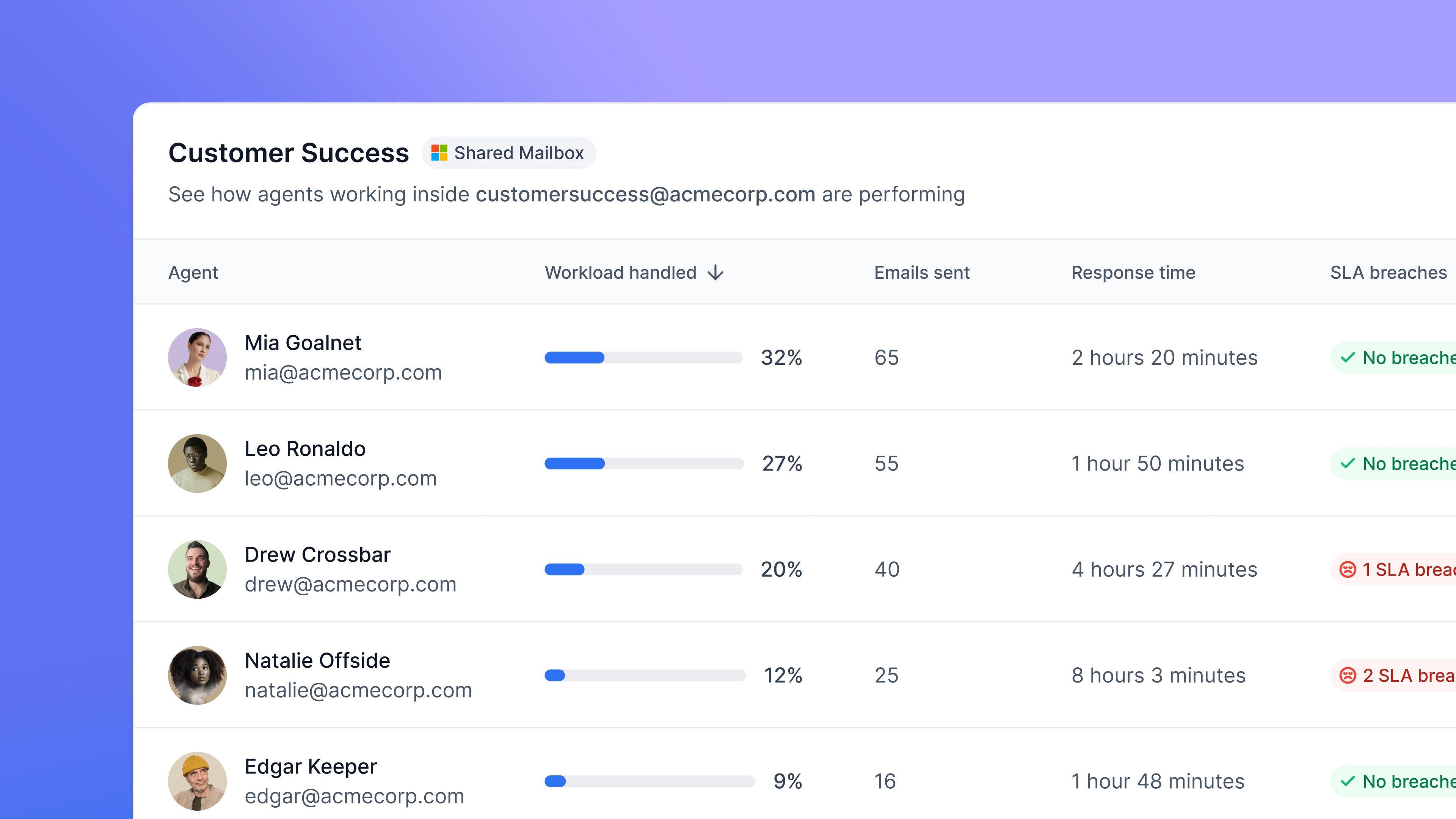 To get individual performance metrics from agents operating within a Delegated Mailbox, **the simplest setup requires having the "send on behalf of" permission activated in your shared mailboxes**.
This ensures that when an agent responds to an email within the Shared Mailbox, the email metadata carries the agent's information. Consequently, the Microsoft Graph API captures this data and Email Meter can use it to generate the statistics.
If you'd like to get agent performance metrics without enabling the "send on behalf of" permission, the only alternative involves enabling Audit Logging for your mailboxes, and giving access to Email Meter to those logs to capture that information. Full instructions are available [here](/workspace-setup/audit-logs-microsoft).
You'll need admin permissions in your Microsoft 365 domain or get in touch with your Microsoft 365 Admin to follow through with these instructions.
## Instructions
### Set up the required permissions
For Email Meter to display agent performance metrics, make sure that agents have the following permissions for the shared mailbox:
* **Full Access**: lets agents access the mailbox to read emails.
* **Send on Behalf**: enables agents to send emails representing the shared mailbox. Crucial for Email Meter's data collection.
For this setup to capture all agent activity, enable only the "Read and manage permissions" and "Send on behalf" permissions on these mailboxes. If "Send as" is also enabled, agents may use it instead, and those sends will not be attributed to them. If your team specifically needs to use "Send as", you'll need to set up [audit log ingestion](/workspace-setup/audit-logs-microsoft) separately to capture that activity.
To get individual performance metrics from agents operating within a Delegated Mailbox, **the simplest setup requires having the "send on behalf of" permission activated in your shared mailboxes**.
This ensures that when an agent responds to an email within the Shared Mailbox, the email metadata carries the agent's information. Consequently, the Microsoft Graph API captures this data and Email Meter can use it to generate the statistics.
If you'd like to get agent performance metrics without enabling the "send on behalf of" permission, the only alternative involves enabling Audit Logging for your mailboxes, and giving access to Email Meter to those logs to capture that information. Full instructions are available [here](/workspace-setup/audit-logs-microsoft).
You'll need admin permissions in your Microsoft 365 domain or get in touch with your Microsoft 365 Admin to follow through with these instructions.
## Instructions
### Set up the required permissions
For Email Meter to display agent performance metrics, make sure that agents have the following permissions for the shared mailbox:
* **Full Access**: lets agents access the mailbox to read emails.
* **Send on Behalf**: enables agents to send emails representing the shared mailbox. Crucial for Email Meter's data collection.
For this setup to capture all agent activity, enable only the "Read and manage permissions" and "Send on behalf" permissions on these mailboxes. If "Send as" is also enabled, agents may use it instead, and those sends will not be attributed to them. If your team specifically needs to use "Send as", you'll need to set up [audit log ingestion](/workspace-setup/audit-logs-microsoft) separately to capture that activity.
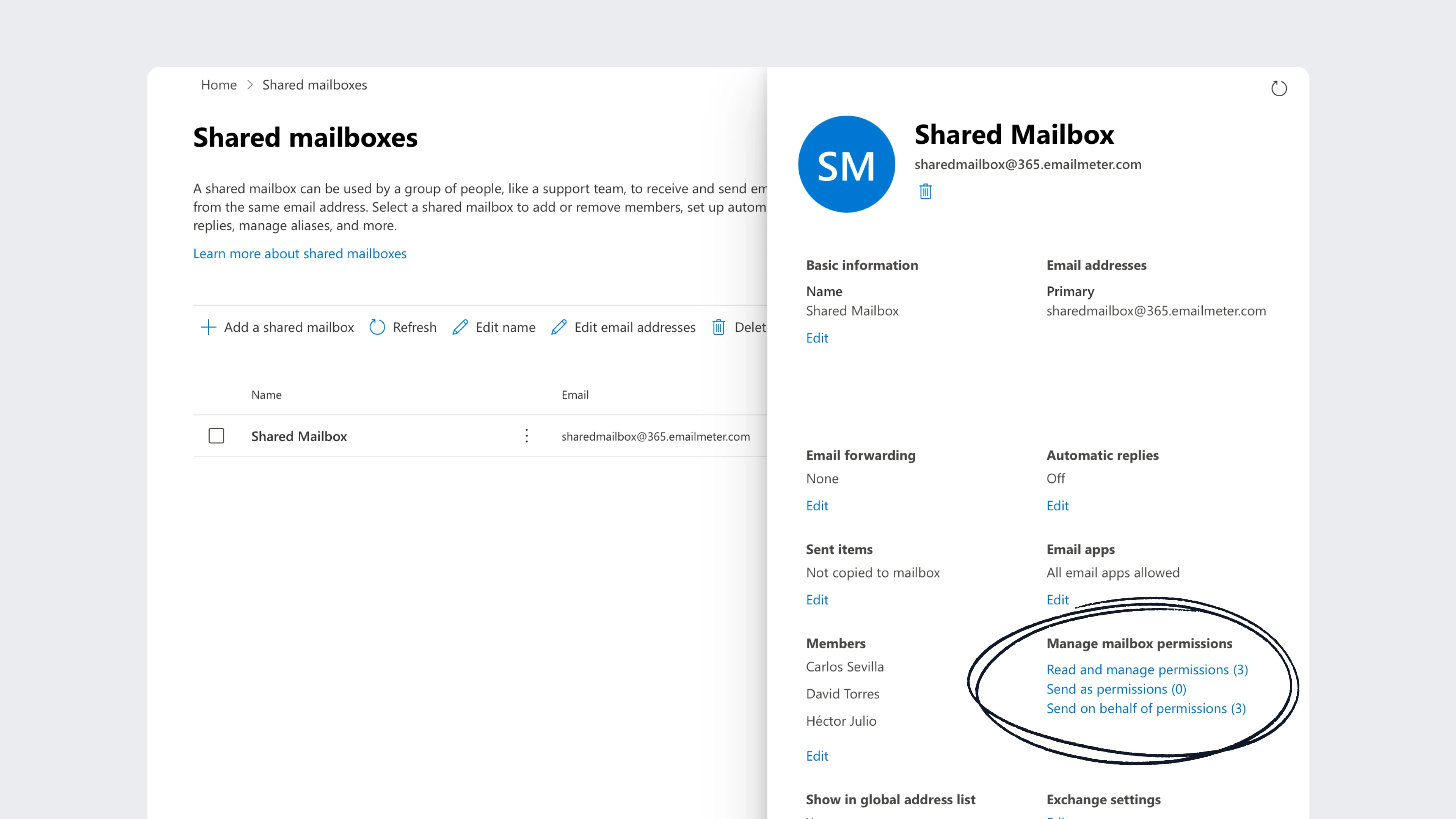 This way, when one of your agents responds to an email that has come into the Shared Mailbox, the information about the agent that responded gets reflected on the Microsoft Graph API and Email Meter can use it to generate email statistics.
If you don't know how to view or change the permissions of your shared mailboxes, please follow Microsoft's documentation [here](https://learn.microsoft.com/en-us/microsoft-365/admin/email/configure-a-shared-mailbox?view=o365-worldwide).
### Examples
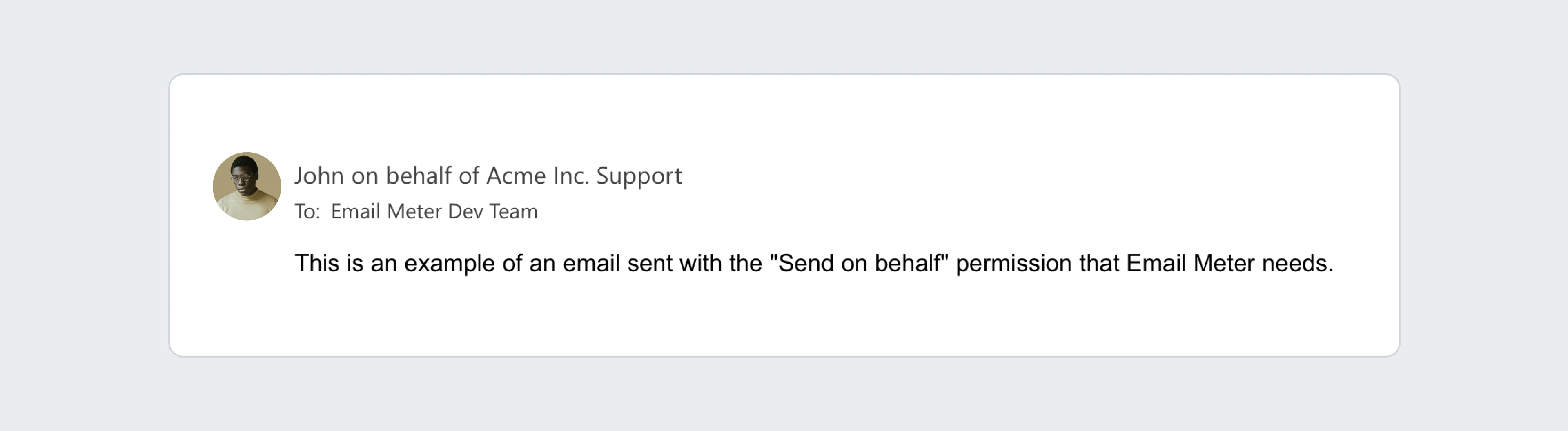
With these settings are set, if agent John accesses the shared mailbox Acme Inc. Support and sends an email, it will display as John on behalf of Acme Inc. Support.
This way, when one of your agents responds to an email that has come into the Shared Mailbox, the information about the agent that responded gets reflected on the Microsoft Graph API and Email Meter can use it to generate email statistics.
If you don't know how to view or change the permissions of your shared mailboxes, please follow Microsoft's documentation [here](https://learn.microsoft.com/en-us/microsoft-365/admin/email/configure-a-shared-mailbox?view=o365-worldwide).
### Examples
With these settings are set, if agent John accesses the shared mailbox Acme Inc. Support and sends an email, it will display as John on behalf of Acme Inc. Support.
 ## Frequently asked questions
Email Meter can track individual agent performance with this setup, but it's important to note that the "Send on behalf of" permission requirement still applies, even if you're delegating access by giving mailbox permissions to other users.
A quick way to check the type of permissions you have is to ask an agent to send an email from the Shared Mailbox. If the email displays as "(Agent Name) on behalf of (Name of the Shared Mailbox)", the permissions are set correctly.
You can learn how to view and manage permissions by following the instructions in Microsoft's documentation [here](https://learn.microsoft.com/en-us/microsoft-365/admin/email/configure-a-shared-mailbox?view=o365-worldwide).
To get started with using Shared Mailboxes in Microsoft 365, you can follow the instructions in Microsoft's documentation [here](https://learn.microsoft.com/en-us/microsoft-365/admin/email/create-a-shared-mailbox?view=o365-worldwide).
## Frequently asked questions
Email Meter can track individual agent performance with this setup, but it's important to note that the "Send on behalf of" permission requirement still applies, even if you're delegating access by giving mailbox permissions to other users.
A quick way to check the type of permissions you have is to ask an agent to send an email from the Shared Mailbox. If the email displays as "(Agent Name) on behalf of (Name of the Shared Mailbox)", the permissions are set correctly.
You can learn how to view and manage permissions by following the instructions in Microsoft's documentation [here](https://learn.microsoft.com/en-us/microsoft-365/admin/email/configure-a-shared-mailbox?view=o365-worldwide).
To get started with using Shared Mailboxes in Microsoft 365, you can follow the instructions in Microsoft's documentation [here](https://learn.microsoft.com/en-us/microsoft-365/admin/email/create-a-shared-mailbox?view=o365-worldwide).