> ## Documentation Index
> Fetch the complete documentation index at: https://docs.enterprise.emailmeter.com/llms.txt
> Use this file to discover all available pages before exploring further.
# Exclude emails
> Exclude emails with certain conditions from your dashboard
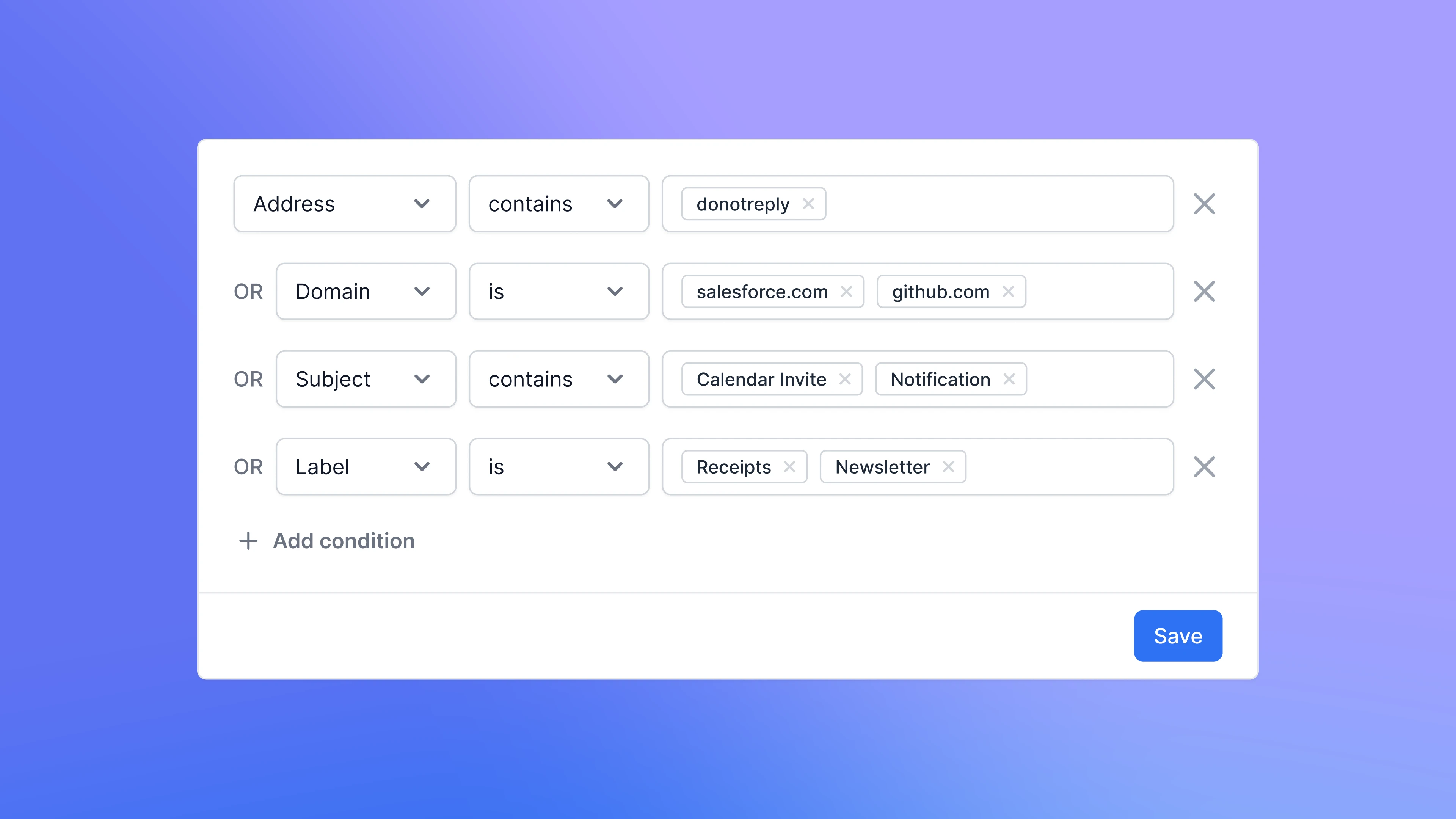 The filtering system available on your dashboard lets you focus on just the type of emails that you need to focus on.
However, sometimes you just want to exclude certain type of emails, and it's tedious to use filters to set up those filters manually every time you use your dashboard.
By using the **Exclude Emails** feature, you can exclude irrelevant emails from your dashboard, ensuring the data displayed in your dashboard is as accurate and tailored as possible.
**This feature is currently on early access**. If you want to test it, please get in touch with your Business Intelligence Consultant.
## Basics
### Excluding emails
Go to [Settings > Metrics Adjustments](https://enterprise.emailmeter.com/settings/metric-adjustments) to start excluding emails. There, you'll find the **Exclude Emails** section.
Start by clicking on `+ Add condition` button. This will open a dropdown with the different criteria.
Set the operator and specify the exact parameters you want to exclude. For example, if you want to exclude emails that come from `spamsender.com`, you'll need to select `Domain > Is > spamsender.com`.
The filtering system available on your dashboard lets you focus on just the type of emails that you need to focus on.
However, sometimes you just want to exclude certain type of emails, and it's tedious to use filters to set up those filters manually every time you use your dashboard.
By using the **Exclude Emails** feature, you can exclude irrelevant emails from your dashboard, ensuring the data displayed in your dashboard is as accurate and tailored as possible.
**This feature is currently on early access**. If you want to test it, please get in touch with your Business Intelligence Consultant.
## Basics
### Excluding emails
Go to [Settings > Metrics Adjustments](https://enterprise.emailmeter.com/settings/metric-adjustments) to start excluding emails. There, you'll find the **Exclude Emails** section.
Start by clicking on `+ Add condition` button. This will open a dropdown with the different criteria.
Set the operator and specify the exact parameters you want to exclude. For example, if you want to exclude emails that come from `spamsender.com`, you'll need to select `Domain > Is > spamsender.com`.
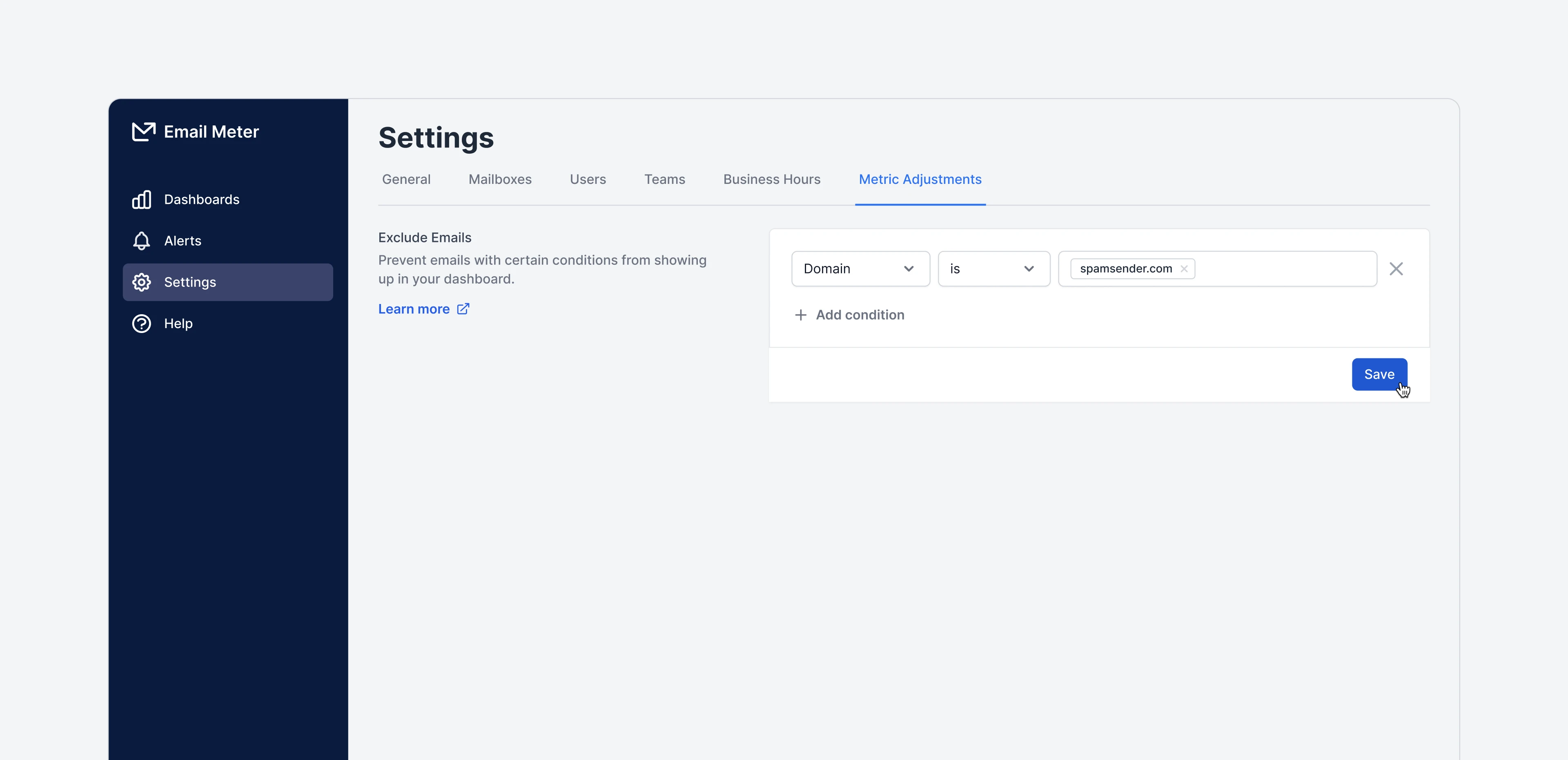 You can add multiple conditions to set up a complex exclusion filter. Just use the `Add condition` button to stack multiple exclusion filters.
Once you have set your conditions, click the `Save` button to apply these exclusions.
### Removing exclusion conditions
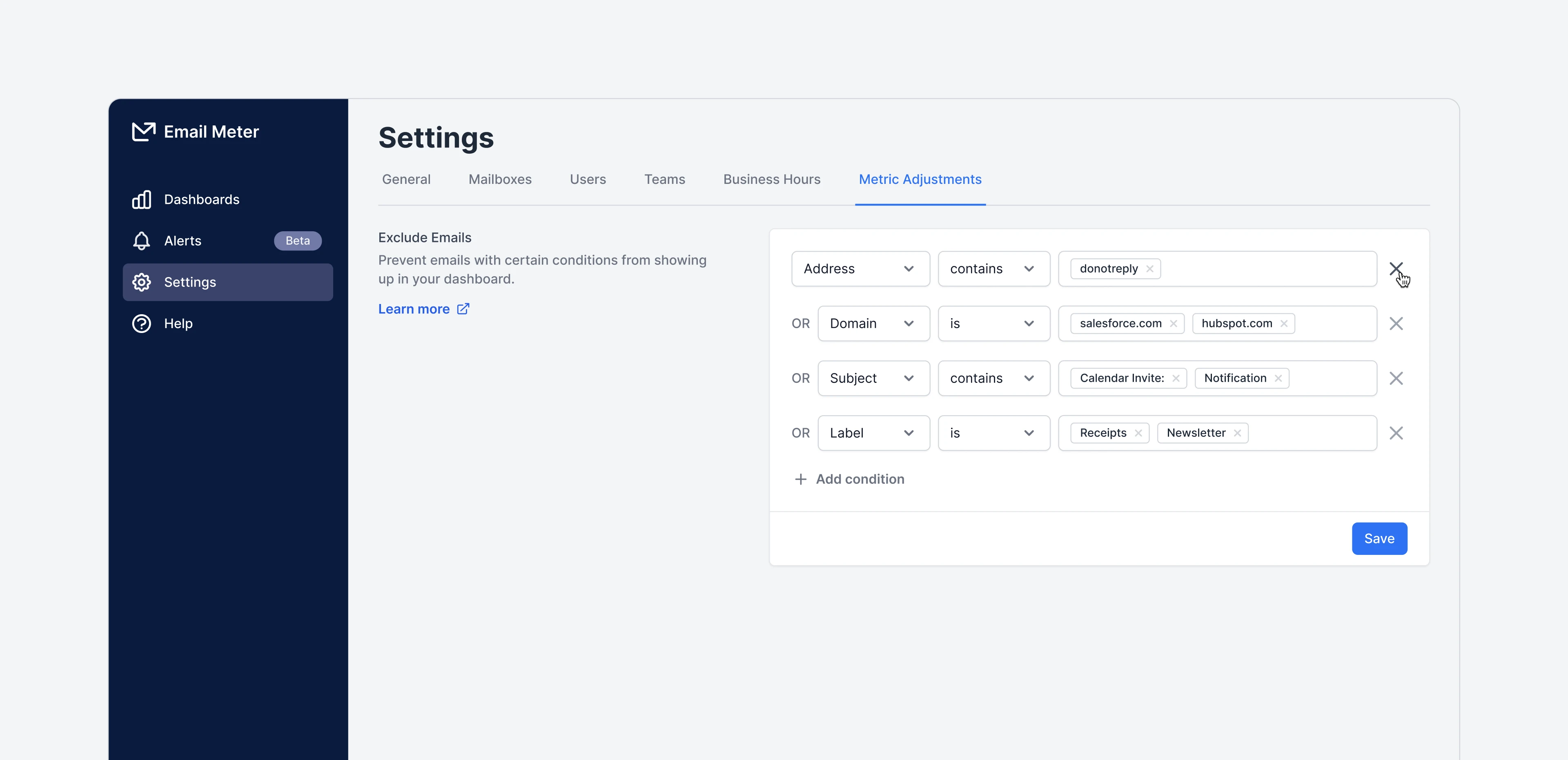
If you need to remove an existing condition just click on the `X` icon next to the condition you want to remove and then click `Save` to apply your changes.
You can add multiple conditions to set up a complex exclusion filter. Just use the `Add condition` button to stack multiple exclusion filters.
Once you have set your conditions, click the `Save` button to apply these exclusions.
### Removing exclusion conditions
If you need to remove an existing condition just click on the `X` icon next to the condition you want to remove and then click `Save` to apply your changes.
 ### Available exclusion options
You can exclude emails by the following properties:
| Filter | Use case | Operators | Available for |
| -------- | ---------------------------------------------- | ------------ | -------------------- |
| Domain | Exclude specific email addresses | is, contains | Google and Microsoft |
| Address | Omit emails from entire domains | is, contains | Google and Microsoft |
| Subject | Exclude emails based on their subject line | is, contains | Google and Microsoft |
| Label | Exclude emails tagged with a specific label | is, contains | Google only |
| Category | Exclude emails tagged with a specific category | is, contains | Microsoft only |
| Folder | Exclude emails that are on a specific folder | is, contains | Microsoft only |
If you require more complex filtering for your exclusions, please get in touch with your Business Intelligence Consultant.
### Combining exclusion conditions
Exclusion conditions function as `OR`, not `AND`.
This means each condition acts independently. If you add multiple exclusion rules, each of them is applied separately.
## Examples
### Excluding out of the office emails
* **Condition**: `Subject > contains > Out of the office`
* **Use case**: ensure that automated Out of the Office replies, which are often non-actionable, are excluded from your metrics.
### Excluding newsletters
* **Condition**: `Address > contains > newsletter`
* **Use case**: remove all emails manually tagged as newsletters. Useful for companies that receive a high volume of industry newsletters but don't want to include those on their email analytics reports.
### Excluding calendar invites
* **Condition**: `Subject > contains > Invite:, Invite updated:, Accepted:, Event cancelled:`
* **Use case**: exclude calendar invites from email statistics. This is particularly beneficial for businesses that receive numerous meeting invites but want to focus their email analytics on client or internal communications.
## Frequently asked questions
No, excluding emails doesn't remove them permanently. If at any point you change your exclusion conditions, emails that were previously excluded will show up again on your data.
Any changes to your exclusion conditions will be relfected on your dashboard the following day at 12:01AM local time.
You'll still be able to see excluded emails on the dataset, but they will be flagged with `is_excluded = true`.
### Available exclusion options
You can exclude emails by the following properties:
| Filter | Use case | Operators | Available for |
| -------- | ---------------------------------------------- | ------------ | -------------------- |
| Domain | Exclude specific email addresses | is, contains | Google and Microsoft |
| Address | Omit emails from entire domains | is, contains | Google and Microsoft |
| Subject | Exclude emails based on their subject line | is, contains | Google and Microsoft |
| Label | Exclude emails tagged with a specific label | is, contains | Google only |
| Category | Exclude emails tagged with a specific category | is, contains | Microsoft only |
| Folder | Exclude emails that are on a specific folder | is, contains | Microsoft only |
If you require more complex filtering for your exclusions, please get in touch with your Business Intelligence Consultant.
### Combining exclusion conditions
Exclusion conditions function as `OR`, not `AND`.
This means each condition acts independently. If you add multiple exclusion rules, each of them is applied separately.
## Examples
### Excluding out of the office emails
* **Condition**: `Subject > contains > Out of the office`
* **Use case**: ensure that automated Out of the Office replies, which are often non-actionable, are excluded from your metrics.
### Excluding newsletters
* **Condition**: `Address > contains > newsletter`
* **Use case**: remove all emails manually tagged as newsletters. Useful for companies that receive a high volume of industry newsletters but don't want to include those on their email analytics reports.
### Excluding calendar invites
* **Condition**: `Subject > contains > Invite:, Invite updated:, Accepted:, Event cancelled:`
* **Use case**: exclude calendar invites from email statistics. This is particularly beneficial for businesses that receive numerous meeting invites but want to focus their email analytics on client or internal communications.
## Frequently asked questions
No, excluding emails doesn't remove them permanently. If at any point you change your exclusion conditions, emails that were previously excluded will show up again on your data.
Any changes to your exclusion conditions will be relfected on your dashboard the following day at 12:01AM local time.
You'll still be able to see excluded emails on the dataset, but they will be flagged with `is_excluded = true`.