> ## Documentation Index
> Fetch the complete documentation index at: https://docs.enterprise.emailmeter.com/llms.txt
> Use this file to discover all available pages before exploring further.
# Business hours
> Take your schedule into account when calculating response times
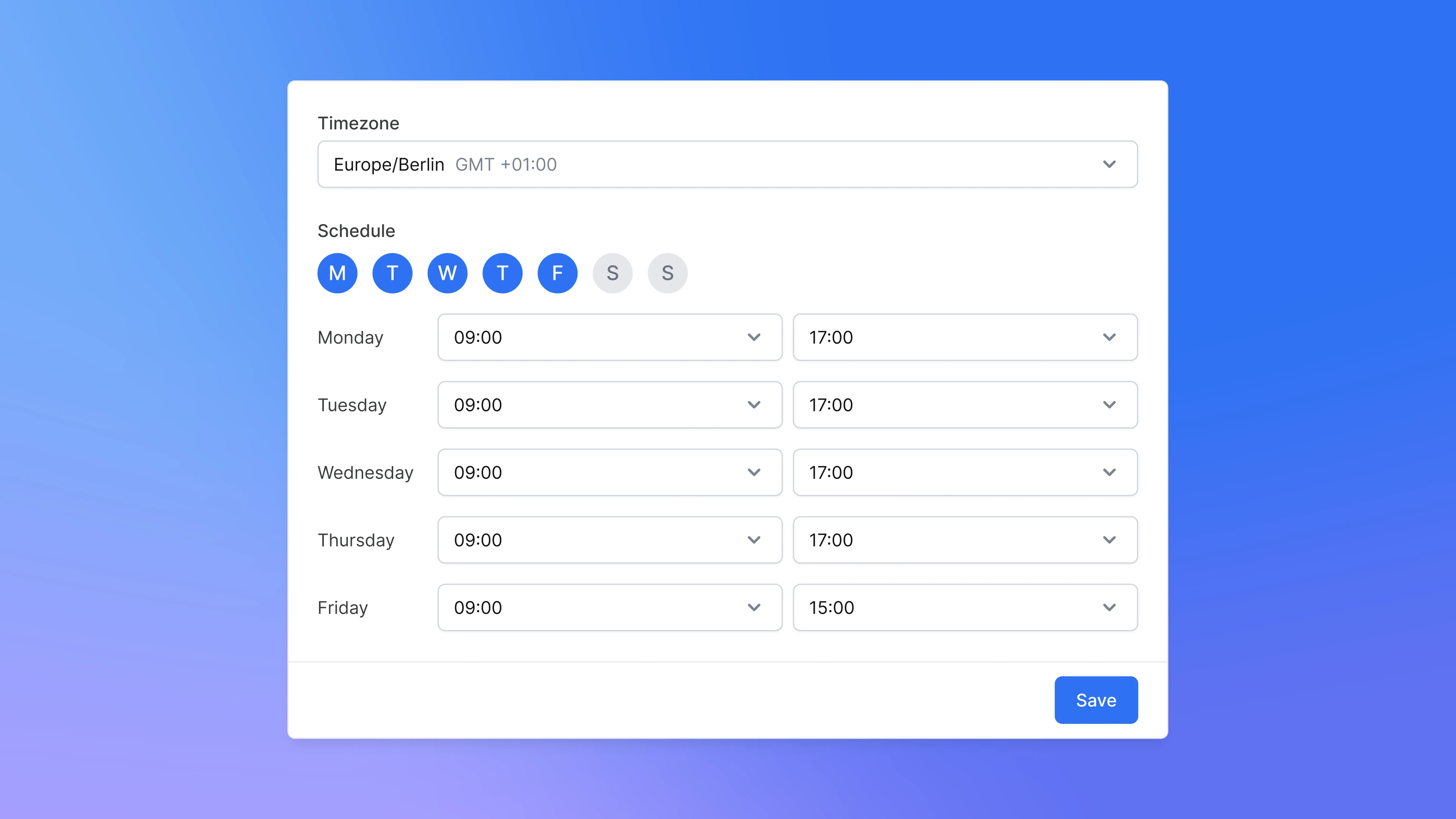 Define your business hours in Email Meter to reflect the hours when your team is expected to be available to respond to emails.
You can set business hours at a company level, but also have the option to select different schedules for individual mailboxes.
## Basics
Setting up Business Hours refines how response times are tracked within the specified schedule.
Outside of your selected timeframe, response times won't be counted. This way, the response time metric remains true to your team's schedule.
For example:
* Your business hours are set for 9:00 AM - 5:00 PM and a message arrives at 4:30PM. Your team replies the next day at 10:30AM. Response time will count as 2 hours.
* Your business hours are set for 9:00AM - 5:00PM and a message arrives at 8:00PM. Your team replies the next day at 9:15AM. Reply time will count as 15 minutes.
### Business hours logic
You can set business hours at a company level, but also have the option to set up specific schedules for individual mailboxes. This is useful for global organizations with distributed teams working in different schedules and timezones.
If you have company and mailbox-level business hours set up, Email Meter will choose the most specific ones when calculating the response time of a specific message.
For a given mailbox, this is how the logic works:
| Company business hours set up | Mailbox business hours set up | Business hours applied in calculations |
| ----------------------------- | ----------------------------- | -------------------------------------- |
| Defined | Not defined | Company business hours |
| Defined | Custom | Custom mailbox business hours |
| Defined | Ignored | None |
| Not defined | Not defined | None |
| Not defined | Custom | Custom mailbox business hours |
| Not defined | Ignored | None |
## Define and edit business hours
### For the company
Go to [Settings > Business Hours](https://enterprise.emailmeter.com/settings/business-hours) to set up to set up your company's business hours.
Define your business hours in Email Meter to reflect the hours when your team is expected to be available to respond to emails.
You can set business hours at a company level, but also have the option to select different schedules for individual mailboxes.
## Basics
Setting up Business Hours refines how response times are tracked within the specified schedule.
Outside of your selected timeframe, response times won't be counted. This way, the response time metric remains true to your team's schedule.
For example:
* Your business hours are set for 9:00 AM - 5:00 PM and a message arrives at 4:30PM. Your team replies the next day at 10:30AM. Response time will count as 2 hours.
* Your business hours are set for 9:00AM - 5:00PM and a message arrives at 8:00PM. Your team replies the next day at 9:15AM. Reply time will count as 15 minutes.
### Business hours logic
You can set business hours at a company level, but also have the option to set up specific schedules for individual mailboxes. This is useful for global organizations with distributed teams working in different schedules and timezones.
If you have company and mailbox-level business hours set up, Email Meter will choose the most specific ones when calculating the response time of a specific message.
For a given mailbox, this is how the logic works:
| Company business hours set up | Mailbox business hours set up | Business hours applied in calculations |
| ----------------------------- | ----------------------------- | -------------------------------------- |
| Defined | Not defined | Company business hours |
| Defined | Custom | Custom mailbox business hours |
| Defined | Ignored | None |
| Not defined | Not defined | None |
| Not defined | Custom | Custom mailbox business hours |
| Not defined | Ignored | None |
## Define and edit business hours
### For the company
Go to [Settings > Business Hours](https://enterprise.emailmeter.com/settings/business-hours) to set up to set up your company's business hours.
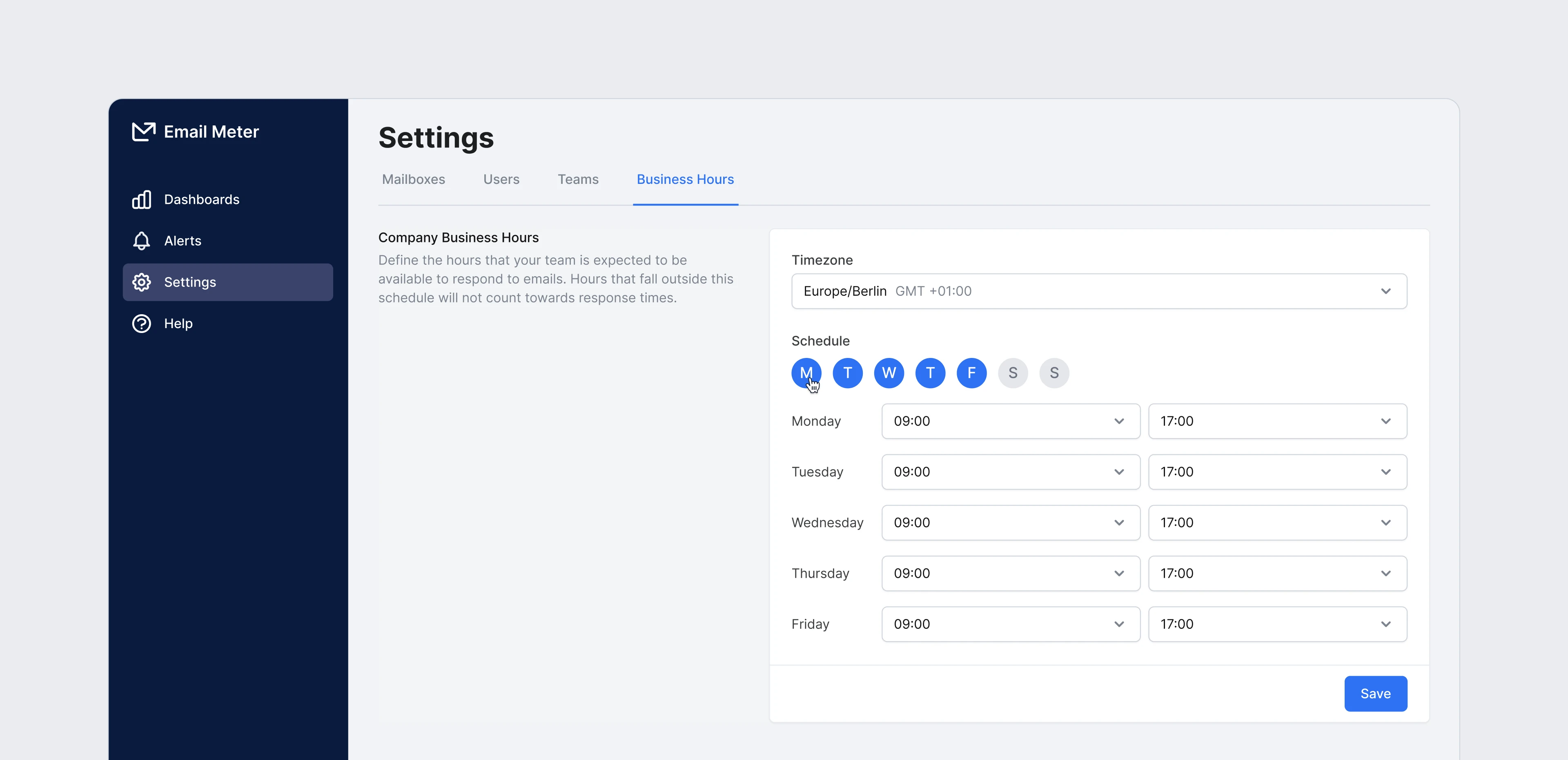 If it is your first time setting up business hours, they will be empty by default.
Start by selecting your main timezone. Then, click on the days of the week and customize the hours for each day you've selected. Once you're done, click `Save` to confirm your changes.
### For specific mailboxes
You can also define business hours for specific mailboxes on [Settings > Mailboxes](https://enterprise.emailmeter.com/settings/mailboxes).
Click on the three-dot icon next to the mailbox you want to change business hours for, and select `Edit business hours`.
A modal will open, giving you three options:
* **Company**: follow the business hours set at the company level.
* **Custom**: select a specific timezone and schedule for this mailbox only.
* **Ignored**: this mailbox won't be affected by business hours. Useful for mailboxes that operate 24/7.
If it is your first time setting up business hours, they will be empty by default.
Start by selecting your main timezone. Then, click on the days of the week and customize the hours for each day you've selected. Once you're done, click `Save` to confirm your changes.
### For specific mailboxes
You can also define business hours for specific mailboxes on [Settings > Mailboxes](https://enterprise.emailmeter.com/settings/mailboxes).
Click on the three-dot icon next to the mailbox you want to change business hours for, and select `Edit business hours`.
A modal will open, giving you three options:
* **Company**: follow the business hours set at the company level.
* **Custom**: select a specific timezone and schedule for this mailbox only.
* **Ignored**: this mailbox won't be affected by business hours. Useful for mailboxes that operate 24/7.
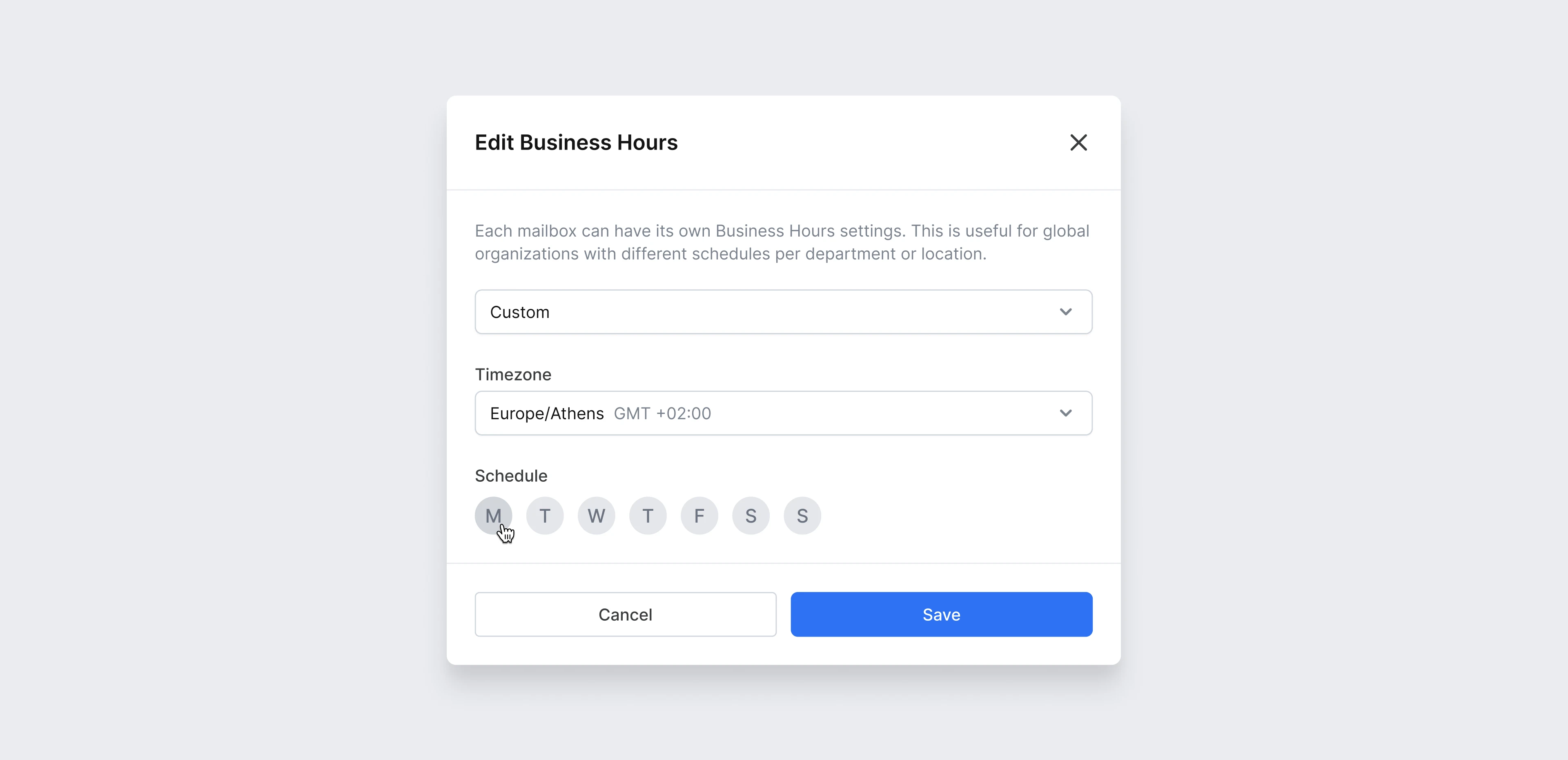 Once you've selected your desired option, click `Save` to confirm your changes.
If you have a mailbox that operates outside the company's standard business hours (such as a support inbox that's active 24/7) you should select "Ignored" for that mailbox. This ensures its response times are calculated separately and won't follow company hours.
## Frequently asked questions
We only count the time that happened during your business hours. For example, if your business hours hours are set from 8AM to 5PM, if you receive an email at 1PM and answer at 9PM, the response time is still 4 hours.
As both actions happened outside of business hours, and no time included in the set business hours has been included, the response time for that email is counted as 0 seconds.
When changing business hours, analytics will use the newly defined ones for past and future conversations. Your analytics dashboard will be refreshed at 12:01AM the following day to reflect this change.
For mailboxes covering multiple time zones, extend the business hours to cover all working hours across these zones. For example, if your team operates in both EST and PST from 9AM to 5PM, set the business hours from 6AM to 5PM PST to cover the full set of working hours.
Yes. If you have business hours enabled, the Weekly Workload page in your dashboard showcases a breakdown of emails inside and outside business hours.
Once you've selected your desired option, click `Save` to confirm your changes.
If you have a mailbox that operates outside the company's standard business hours (such as a support inbox that's active 24/7) you should select "Ignored" for that mailbox. This ensures its response times are calculated separately and won't follow company hours.
## Frequently asked questions
We only count the time that happened during your business hours. For example, if your business hours hours are set from 8AM to 5PM, if you receive an email at 1PM and answer at 9PM, the response time is still 4 hours.
As both actions happened outside of business hours, and no time included in the set business hours has been included, the response time for that email is counted as 0 seconds.
When changing business hours, analytics will use the newly defined ones for past and future conversations. Your analytics dashboard will be refreshed at 12:01AM the following day to reflect this change.
For mailboxes covering multiple time zones, extend the business hours to cover all working hours across these zones. For example, if your team operates in both EST and PST from 9AM to 5PM, set the business hours from 6AM to 5PM PST to cover the full set of working hours.
Yes. If you have business hours enabled, the Weekly Workload page in your dashboard showcases a breakdown of emails inside and outside business hours.