> ## Documentation Index
> Fetch the complete documentation index at: https://docs.enterprise.emailmeter.com/llms.txt
> Use this file to discover all available pages before exploring further.
# Using audit logs to track shared mailboxes
> Track agent performance in shared mailboxes without the "send on behalf of" permission
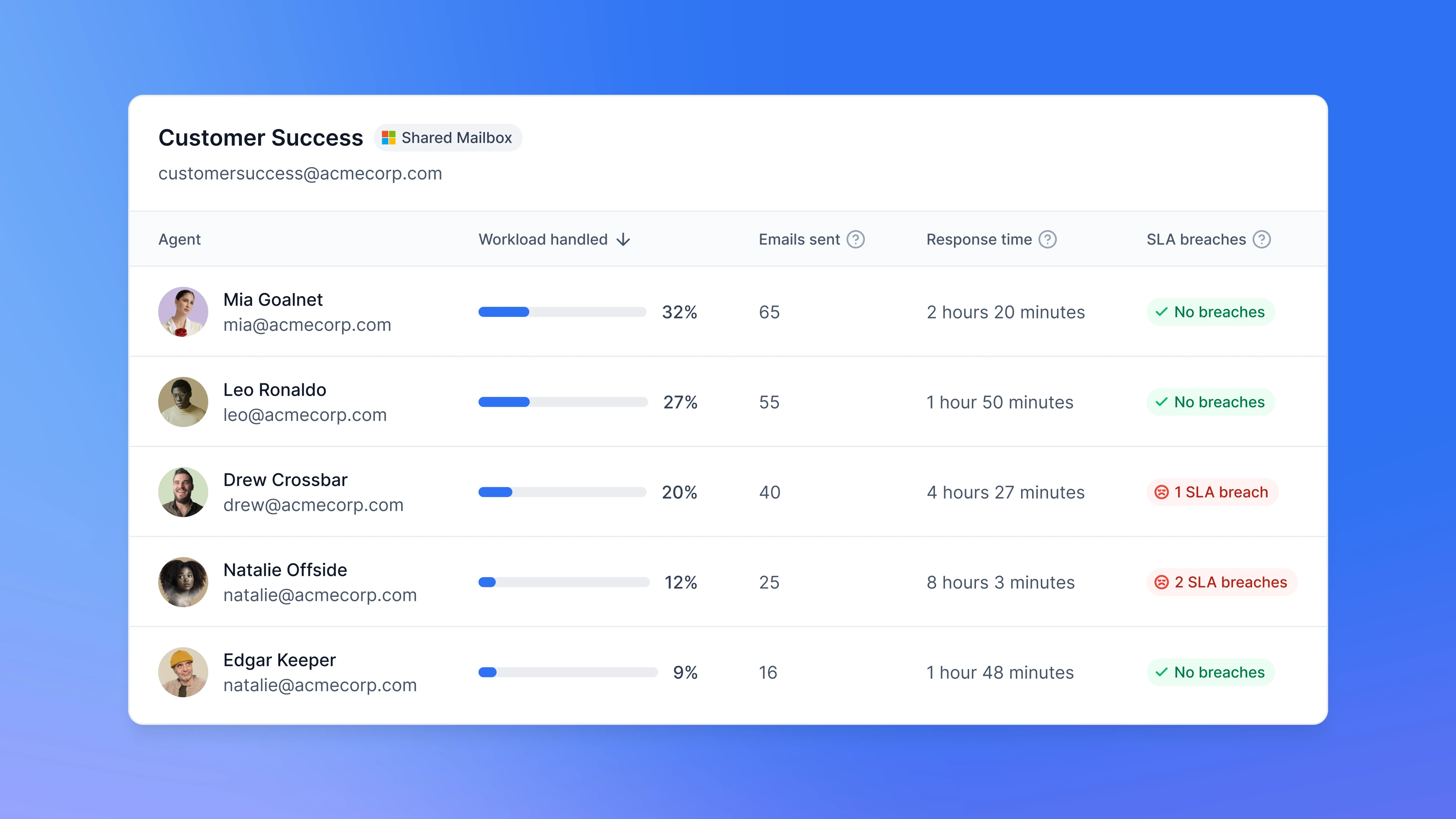 Tracking individual agent performance inside a Shared Mailbox can be vital for understanding team performance and ensuring accountability.
Email Meter provides a [simple solution](/workspace-setup/shared-mailboxes) for capturing detailed metrics about each agent's actions in Shared Mailboxes if the `send on behalf of` permission is enabled.
If you'd like to get agent performance metrics without turning on the Send on Behalf setting, the only alternative is enabling Audit Logging for your mailboxes, and giving access to Email Meter to those logs to capture that information.
You'll need admin permissions in your Microsoft 365 domain or get in touch with your Microsoft 365 Admin to follow through with these instructions.
## Requirements
* Having audit logging enabled for your organization.
* Granting Email Meter access to those logs.
**Multi-geo tenants**: if your Microsoft 365 tenant has mailboxes in different geographic regions, Microsoft does not write audit events when an agent sends from a shared mailbox located in a different region. This is a [documented Microsoft limitation](https://learn.microsoft.com/en-us/purview/audit-mailboxes#supported-mailbox-types), not something Email Meter can resolve. If this might affect your team, read [this article](/other-bits/debugging/multi-geo-shared-mailboxes) before going any further.
## Steps
### Enable audit logging
The first step is to [turn on audit logging](https://learn.microsoft.com/en-us/purview/audit-log-enable-disable), so that when a user sends an email from a shared mailbox, the information about the agent who sent the email is stored on those logs.
Audit logging is turned on by default for Microsoft 365 organizations.
If auditing isn't turned on for your organization, you can turn it on in the Microsoft Purview portal or compliance portal, or by using Exchange Online PowerShell.
```powershell PowerShell theme={null}
Set-AdminAuditLogConfig -UnifiedAuditLogIngestionEnabled $true
```
For detailed instructions, follow Microsoft's documentation [here](https://learn.microsoft.com/en-us/purview/audit-log-enable-disable).
### Install the required application
Then, install [this application on your domain](https://login.microsoftonline.com/common/adminconsent?client_id=91009ec7-85f1-4b58-979f-d735d04fbf49\&state=365postInstall\&redirect_uri=https://backend-enterprise.emailmeter.com/onboarding/callback/ms-shared).
Tracking individual agent performance inside a Shared Mailbox can be vital for understanding team performance and ensuring accountability.
Email Meter provides a [simple solution](/workspace-setup/shared-mailboxes) for capturing detailed metrics about each agent's actions in Shared Mailboxes if the `send on behalf of` permission is enabled.
If you'd like to get agent performance metrics without turning on the Send on Behalf setting, the only alternative is enabling Audit Logging for your mailboxes, and giving access to Email Meter to those logs to capture that information.
You'll need admin permissions in your Microsoft 365 domain or get in touch with your Microsoft 365 Admin to follow through with these instructions.
## Requirements
* Having audit logging enabled for your organization.
* Granting Email Meter access to those logs.
**Multi-geo tenants**: if your Microsoft 365 tenant has mailboxes in different geographic regions, Microsoft does not write audit events when an agent sends from a shared mailbox located in a different region. This is a [documented Microsoft limitation](https://learn.microsoft.com/en-us/purview/audit-mailboxes#supported-mailbox-types), not something Email Meter can resolve. If this might affect your team, read [this article](/other-bits/debugging/multi-geo-shared-mailboxes) before going any further.
## Steps
### Enable audit logging
The first step is to [turn on audit logging](https://learn.microsoft.com/en-us/purview/audit-log-enable-disable), so that when a user sends an email from a shared mailbox, the information about the agent who sent the email is stored on those logs.
Audit logging is turned on by default for Microsoft 365 organizations.
If auditing isn't turned on for your organization, you can turn it on in the Microsoft Purview portal or compliance portal, or by using Exchange Online PowerShell.
```powershell PowerShell theme={null}
Set-AdminAuditLogConfig -UnifiedAuditLogIngestionEnabled $true
```
For detailed instructions, follow Microsoft's documentation [here](https://learn.microsoft.com/en-us/purview/audit-log-enable-disable).
### Install the required application
Then, install [this application on your domain](https://login.microsoftonline.com/common/adminconsent?client_id=91009ec7-85f1-4b58-979f-d735d04fbf49\&state=365postInstall\&redirect_uri=https://backend-enterprise.emailmeter.com/onboarding/callback/ms-shared).
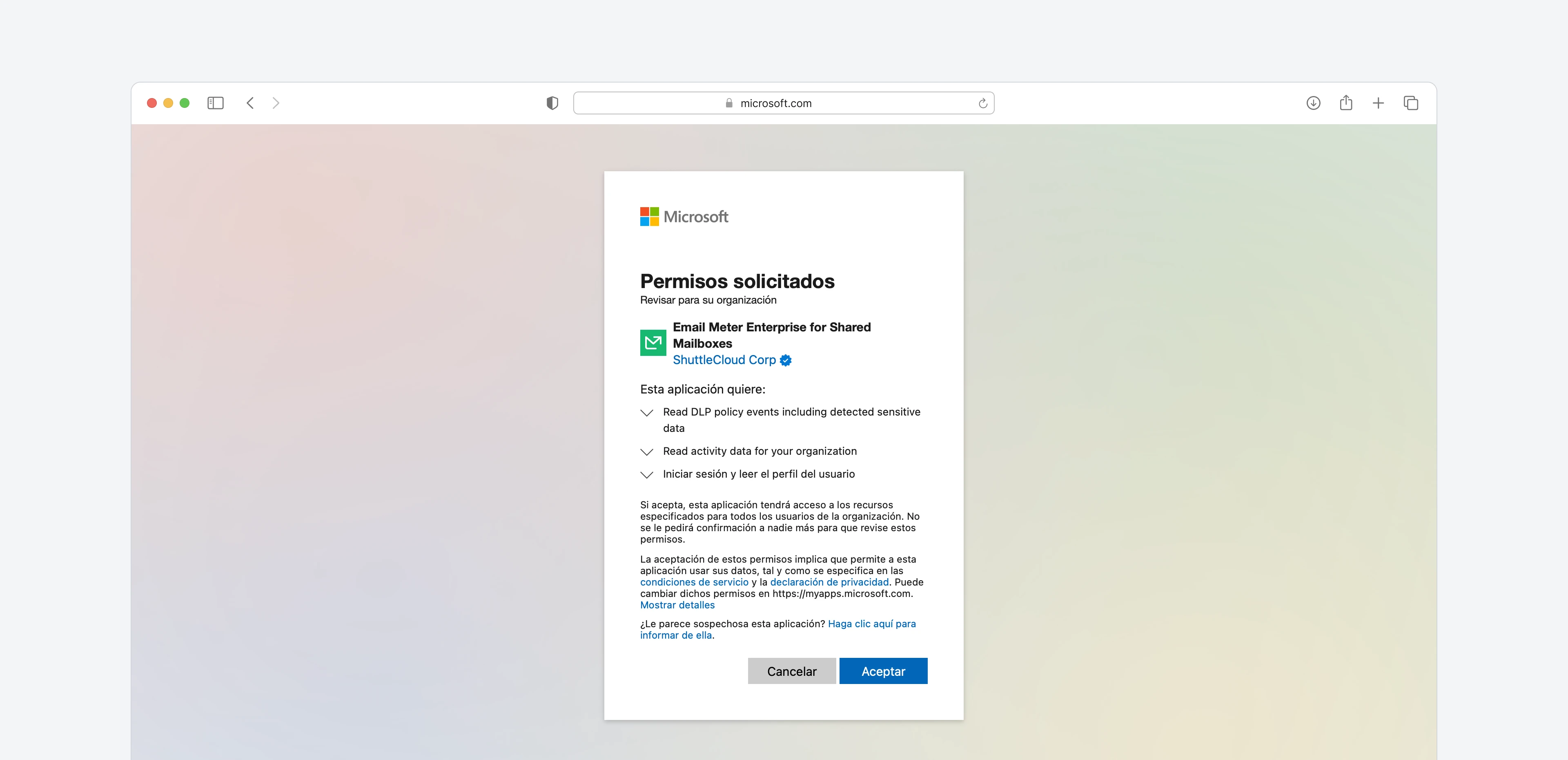 This grants Email Meter access to the audit logs, so that it can capture agent performance metrics and merge them with the rest of your email statistics.
Please note that this application needs to remain installed on top of the main Email Meter application that you already installed during your onboarding.
### Notify your Business Intelligence Consultant
After completing the previous steps, contact your Business Intelligence Consultant so our team can perform the next steps.
We'll notify you when the data is ready in your dashboard.
## Verifying your setup
The checks below are optional, but they help confirm everything is configured correctly before contacting your Business Intelligence Consultant. They're particularly useful if you suspect attribution might be incomplete.
Microsoft can write the `SendAs` audit event on one of two sides: either on the shared mailbox's audit log, or on the agent's own mailbox audit log. Email Meter picks up whichever side fires, so a properly configured agent mailbox can compensate for a misconfigured shared one, and vice versa. If you're seeing partial attribution, it's worth verifying both sides.
### Verify shared mailbox audit settings
Each shared mailbox has its own audit configuration, separate from the tenant-level setting above. In most tenants this is fine by default, but tenants set up before mailbox auditing became on-by-default in 2019 may have customized settings that silently drop `SendAs` from the audit list.
For each shared mailbox you want to track, run:
```powershell PowerShell theme={null}
Get-Mailbox | Format-List `
PrimarySmtpAddress, DefaultAuditSet, AuditDelegate
```
Two things to check:
* **`DefaultAuditSet`** should include `Delegate`. If it only shows `Admin, Owner`, the delegate audit list was customized at some point and won't automatically pick up Microsoft's defaults.
* **`AuditDelegate`** should include `SendAs`. If it doesn't, agents using `Send As` on this mailbox won't generate audit events.
To restore Microsoft's managed defaults (which include `SendAs`):
```powershell PowerShell theme={null}
Set-Mailbox -DefaultAuditSet Admin,Delegate,Owner
```
### Verify agent mailbox audit settings
The agent's own mailbox audit configuration controls whether their outgoing activity (including `Send As`) is logged from their side. If the shared mailbox checks above pass but attribution is still missing for specific agents, the issue likely sits here.
For each agent you want to verify, run:
```powershell PowerShell theme={null}
Get-Mailbox | Format-List `
PrimarySmtpAddress, DefaultAuditSet, AuditOwner
```
Two things to check:
* **`DefaultAuditSet`** should include `Owner`. If it only shows `Admin, Delegate`, the owner audit list was customized and won't automatically pick up Microsoft's defaults.
* **`AuditOwner`** should include `Send`. If it doesn't, the agent's outgoing activity won't generate audit events from their side.
To restore Microsoft's managed defaults:
```powershell PowerShell theme={null}
Set-Mailbox -DefaultAuditSet Admin,Delegate,Owner
```
### Confirm audit events are reaching the Unified Audit Log
Run this query to verify `SendAs` events from the last 7 days are flowing into the Unified Audit Log:
```powershell PowerShell theme={null}
Search-UnifiedAuditLog `
-StartDate (Get-Date).AddDays(-7) -EndDate (Get-Date) `
-FreeText '' -Operations SendAs -ResultSize 100 |
Select-Object CreationDate, UserIds, Operations
```
If this returns rows, audit logging is working end-to-end. If it returns nothing despite agents actively sending from the mailbox, recheck the settings above and consider whether [multi-geo](/other-bits/debugging/multi-geo-shared-mailboxes) might be affecting you.
## Frequently asked questions
We design our applications to use the minimum necessary scopes. As only a small segment of our users need this feature, we have decided to keep these scopes into a secondary application.
This way, only the users that need access to this feature will need to grant access to these extra scopes.
Audit logging is available for all Microsoft 365 subscription tiers. It's enabled by default for most organizations.
If you need to verify or enable audit logging, you can check the Microsoft Purview portal or compliance portal, or contact Microsoft support.
No, audit logs are the only way to get events performed by specific users inside shared mailboxes when the "Send on Behalf" feature is disabled.
This grants Email Meter access to the audit logs, so that it can capture agent performance metrics and merge them with the rest of your email statistics.
Please note that this application needs to remain installed on top of the main Email Meter application that you already installed during your onboarding.
### Notify your Business Intelligence Consultant
After completing the previous steps, contact your Business Intelligence Consultant so our team can perform the next steps.
We'll notify you when the data is ready in your dashboard.
## Verifying your setup
The checks below are optional, but they help confirm everything is configured correctly before contacting your Business Intelligence Consultant. They're particularly useful if you suspect attribution might be incomplete.
Microsoft can write the `SendAs` audit event on one of two sides: either on the shared mailbox's audit log, or on the agent's own mailbox audit log. Email Meter picks up whichever side fires, so a properly configured agent mailbox can compensate for a misconfigured shared one, and vice versa. If you're seeing partial attribution, it's worth verifying both sides.
### Verify shared mailbox audit settings
Each shared mailbox has its own audit configuration, separate from the tenant-level setting above. In most tenants this is fine by default, but tenants set up before mailbox auditing became on-by-default in 2019 may have customized settings that silently drop `SendAs` from the audit list.
For each shared mailbox you want to track, run:
```powershell PowerShell theme={null}
Get-Mailbox | Format-List `
PrimarySmtpAddress, DefaultAuditSet, AuditDelegate
```
Two things to check:
* **`DefaultAuditSet`** should include `Delegate`. If it only shows `Admin, Owner`, the delegate audit list was customized at some point and won't automatically pick up Microsoft's defaults.
* **`AuditDelegate`** should include `SendAs`. If it doesn't, agents using `Send As` on this mailbox won't generate audit events.
To restore Microsoft's managed defaults (which include `SendAs`):
```powershell PowerShell theme={null}
Set-Mailbox -DefaultAuditSet Admin,Delegate,Owner
```
### Verify agent mailbox audit settings
The agent's own mailbox audit configuration controls whether their outgoing activity (including `Send As`) is logged from their side. If the shared mailbox checks above pass but attribution is still missing for specific agents, the issue likely sits here.
For each agent you want to verify, run:
```powershell PowerShell theme={null}
Get-Mailbox | Format-List `
PrimarySmtpAddress, DefaultAuditSet, AuditOwner
```
Two things to check:
* **`DefaultAuditSet`** should include `Owner`. If it only shows `Admin, Delegate`, the owner audit list was customized and won't automatically pick up Microsoft's defaults.
* **`AuditOwner`** should include `Send`. If it doesn't, the agent's outgoing activity won't generate audit events from their side.
To restore Microsoft's managed defaults:
```powershell PowerShell theme={null}
Set-Mailbox -DefaultAuditSet Admin,Delegate,Owner
```
### Confirm audit events are reaching the Unified Audit Log
Run this query to verify `SendAs` events from the last 7 days are flowing into the Unified Audit Log:
```powershell PowerShell theme={null}
Search-UnifiedAuditLog `
-StartDate (Get-Date).AddDays(-7) -EndDate (Get-Date) `
-FreeText '' -Operations SendAs -ResultSize 100 |
Select-Object CreationDate, UserIds, Operations
```
If this returns rows, audit logging is working end-to-end. If it returns nothing despite agents actively sending from the mailbox, recheck the settings above and consider whether [multi-geo](/other-bits/debugging/multi-geo-shared-mailboxes) might be affecting you.
## Frequently asked questions
We design our applications to use the minimum necessary scopes. As only a small segment of our users need this feature, we have decided to keep these scopes into a secondary application.
This way, only the users that need access to this feature will need to grant access to these extra scopes.
Audit logging is available for all Microsoft 365 subscription tiers. It's enabled by default for most organizations.
If you need to verify or enable audit logging, you can check the Microsoft Purview portal or compliance portal, or contact Microsoft support.
No, audit logs are the only way to get events performed by specific users inside shared mailboxes when the "Send on Behalf" feature is disabled.