> ## Documentation Index
> Fetch the complete documentation index at: https://docs.enterprise.emailmeter.com/llms.txt
> Use this file to discover all available pages before exploring further.
# Alerts
> Set up alerts to prevent slow responses and missed emails
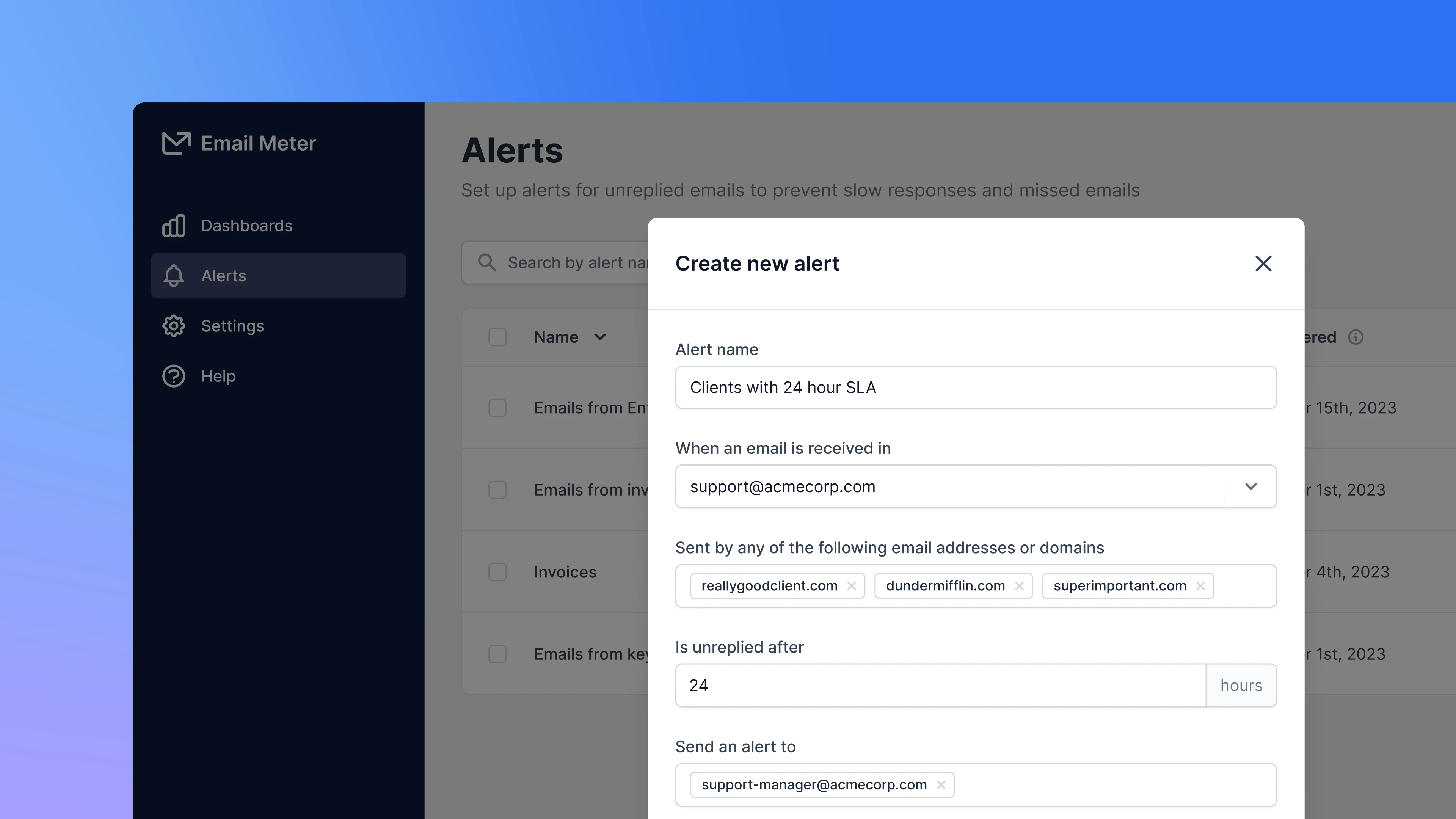 Alerts in Email Meter allow you to get notified when an important email has been waiting to be replied for a long time.
Whether you have internal response time goals for your team or contractual SLAs with your customers, you can use Alerts to make sure that essential communications never slip through the cracks.
## Basics
### How it works
Email Meter Alerts allow you to get notified about email that meet specific conditions and haven't been replied after a certain amount of time.
If the conditions of your alert are met and the unreplied time limit has passed, then the rule will trigger and will send an email notification to the email addresses you decided.
### Creating an alert
You can create a new alert by clicking `+ Create a new alert` on the [Alerts](https://enterprise.emailmeter.com/alerts/) page.
Alerts in Email Meter allow you to get notified when an important email has been waiting to be replied for a long time.
Whether you have internal response time goals for your team or contractual SLAs with your customers, you can use Alerts to make sure that essential communications never slip through the cracks.
## Basics
### How it works
Email Meter Alerts allow you to get notified about email that meet specific conditions and haven't been replied after a certain amount of time.
If the conditions of your alert are met and the unreplied time limit has passed, then the rule will trigger and will send an email notification to the email addresses you decided.
### Creating an alert
You can create a new alert by clicking `+ Create a new alert` on the [Alerts](https://enterprise.emailmeter.com/alerts/) page.
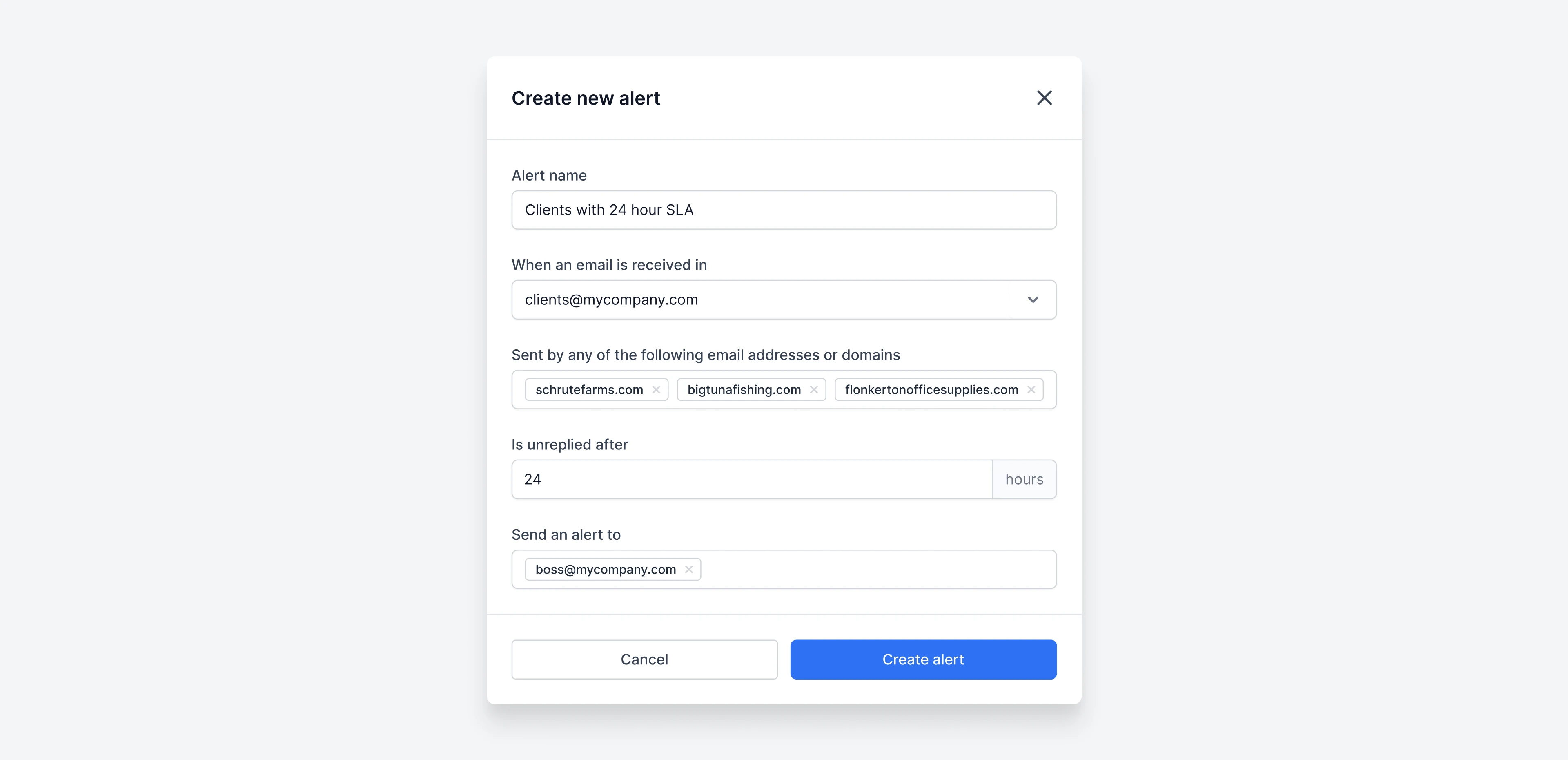 A modal will open, asking you to define the conditions of your alert.
* **Alert name**: enter a descriptive title that clarifies the alert's purpose.
* **When an email is received in**: select the internal mailboxes that this alert will monitor.
* **Sent by any of the following email addresses or domains**: add the email addresses or domains that will trigger the alert. If you want to make sure your client Dunder Mifflin™ is replied on time, add `dundermifflin.com`.
* **Is unreplied after**: set the time (in hours) at which the alert should be triggered. For example, if you want your team to respond in less than 24 hours, then use 24 hours.
* **Send an alert to**: enter the email address of the recipients that should receive the alert.
## Receiving a triggered alert
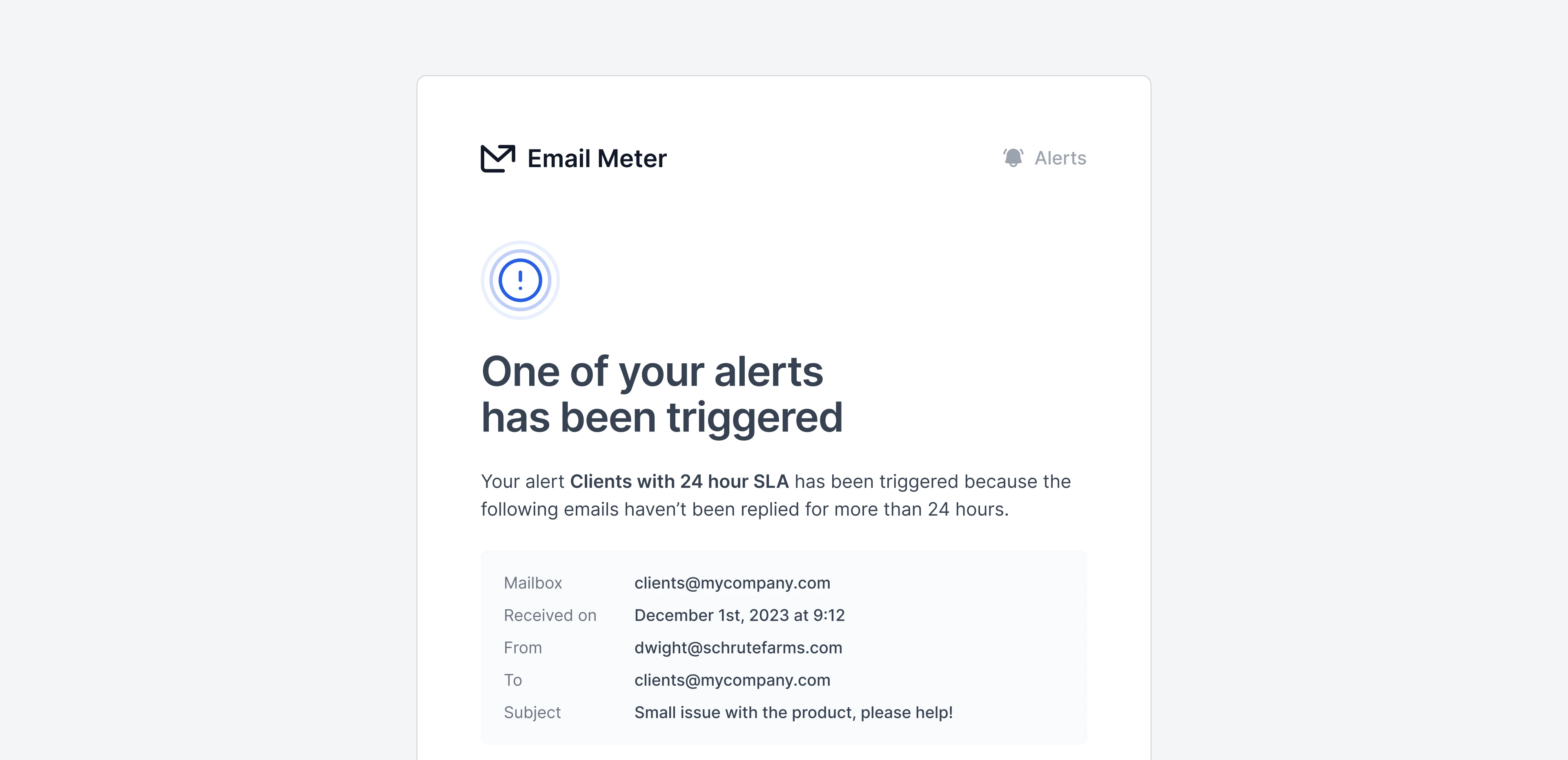
Every hour, our system checks for emails that meet the conditions of your alerts and haven't been replied yet. If any email matches your conditions, the recipients you defined will receive a notification email.
A modal will open, asking you to define the conditions of your alert.
* **Alert name**: enter a descriptive title that clarifies the alert's purpose.
* **When an email is received in**: select the internal mailboxes that this alert will monitor.
* **Sent by any of the following email addresses or domains**: add the email addresses or domains that will trigger the alert. If you want to make sure your client Dunder Mifflin™ is replied on time, add `dundermifflin.com`.
* **Is unreplied after**: set the time (in hours) at which the alert should be triggered. For example, if you want your team to respond in less than 24 hours, then use 24 hours.
* **Send an alert to**: enter the email address of the recipients that should receive the alert.
## Receiving a triggered alert
Every hour, our system checks for emails that meet the conditions of your alerts and haven't been replied yet. If any email matches your conditions, the recipients you defined will receive a notification email.
 ### Editing an existing alert
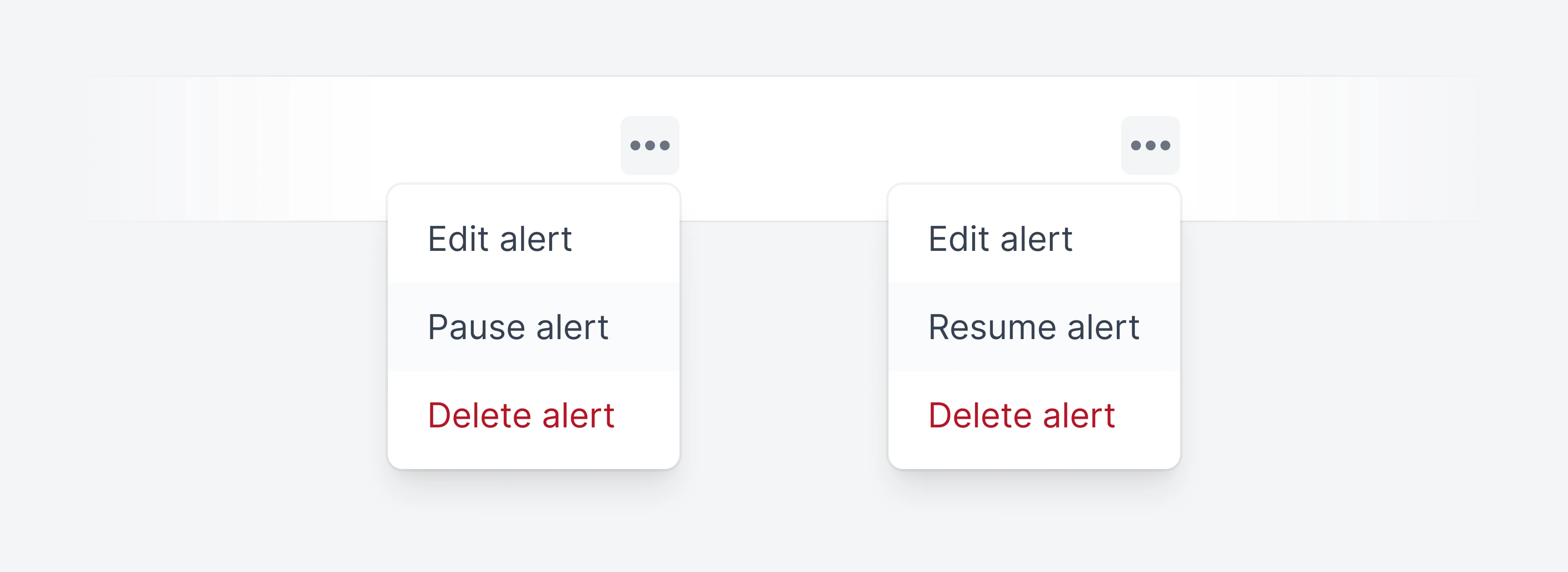
You can edit an existing Alert by clicking on the three-dot icon and selecting `Edit alert`.
A modal will open, allowing you to change the conditions of the alert.
### Pausing and resuming alerts
To pause an alert, click on the three-dot icon and selecting `Pause alert`. If the alert is Paused, you'll be able to resume the alert instead.
### Editing an existing alert
You can edit an existing Alert by clicking on the three-dot icon and selecting `Edit alert`.
A modal will open, allowing you to change the conditions of the alert.
### Pausing and resuming alerts
To pause an alert, click on the three-dot icon and selecting `Pause alert`. If the alert is Paused, you'll be able to resume the alert instead.
 ### Removing an alert
To permanently delete an alert, click on the three-dot icon and choose `Remove alert`. A modal will open to confirm the action.
### Removing an alert
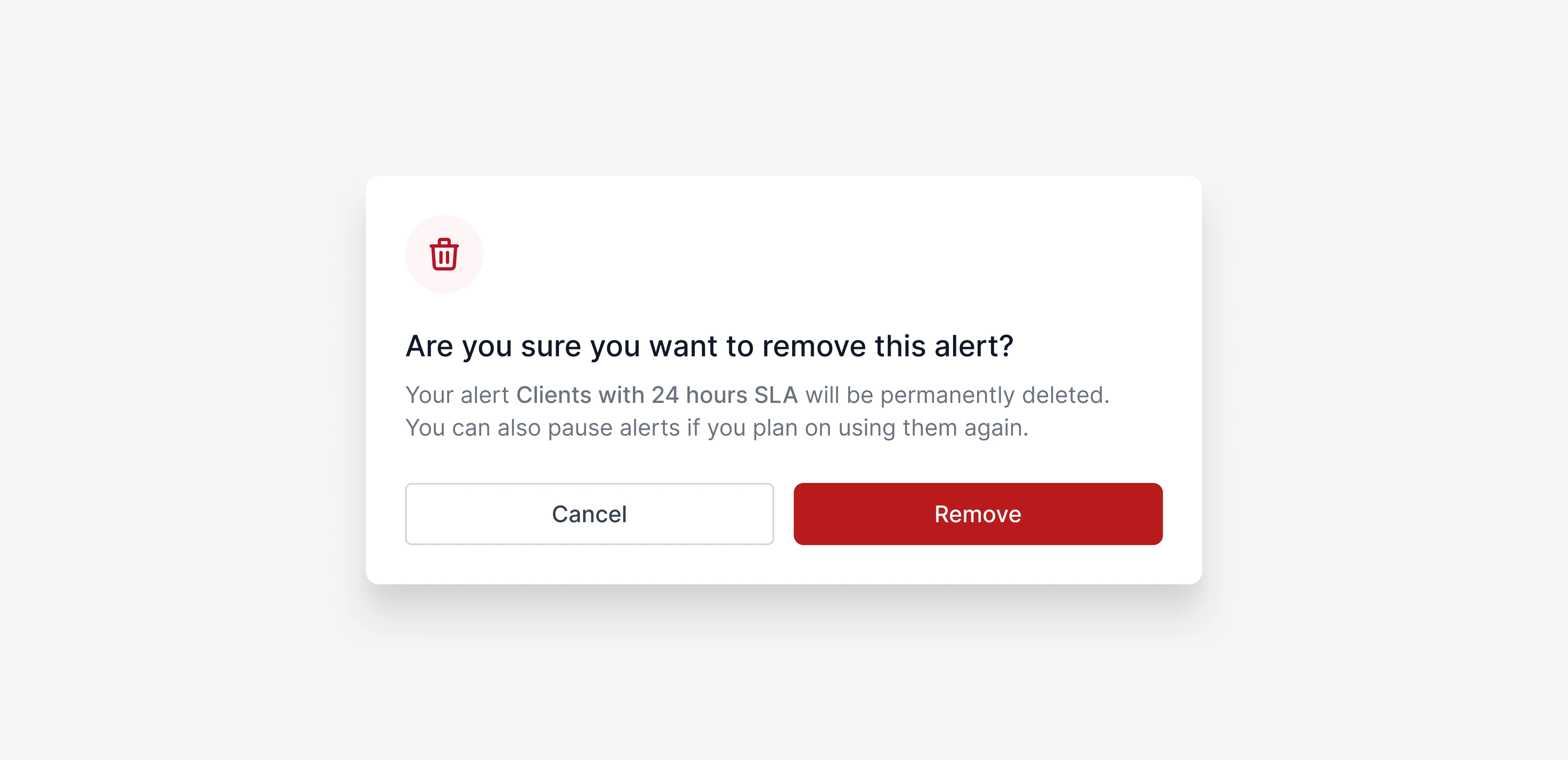
To permanently delete an alert, click on the three-dot icon and choose `Remove alert`. A modal will open to confirm the action.
 ## Frequently asked questions
At the moment Alerts are sent via email only. We're currently working on integrating with Slack, Teams and via webhooks.
Currently only Administrators can manage Alerts.
Because it's the most common use-case among our users. However, our goal is to expand to a library of easy-to-use alerts for different use cases soon.
The goal of this feature is to notify you for crucial unreplied emails. Setting up alerts for every email not replied in a certain mailbox would overwhelm you with too many alerts, and that's why we implemented this limitation.
## Frequently asked questions
At the moment Alerts are sent via email only. We're currently working on integrating with Slack, Teams and via webhooks.
Currently only Administrators can manage Alerts.
Because it's the most common use-case among our users. However, our goal is to expand to a library of easy-to-use alerts for different use cases soon.
The goal of this feature is to notify you for crucial unreplied emails. Setting up alerts for every email not replied in a certain mailbox would overwhelm you with too many alerts, and that's why we implemented this limitation.