> ## Documentation Index
> Fetch the complete documentation index at: https://docs.enterprise.emailmeter.com/llms.txt
> Use this file to discover all available pages before exploring further.
# Save sent emails on your Shared Mailbox
> Track emails sent from a Shared Mailbox with Email Meter
By default, when an email is sent from a Shared Mailbox in Outlook, the message is stored only in the sender's personal `Sent Items` folder, not in the `Sent Items` folder of the Shared Mailbox itself.
This means that by default, Shared Mailboxes only contain received emails, and Email Meter will not be able to provide insights on the number of sent emails.
If your team uses [Shared Mailboxes in Outlook](https://learn.microsoft.com/en-us/microsoft-365/admin/email/configure-a-shared-mailbox?view=o365-worldwide) and you want to track the full email activity in those mailboxes, you need to ensure that the sent emails from that mailbox are stored on the mailbox.
The following steps need to be performed by an administrator, or any user with enough permissions to do this in the Microsoft admin center.
## Instructions
Go to your [Microsoft Admin Center](https://admin.microsoft.com/), and log in.
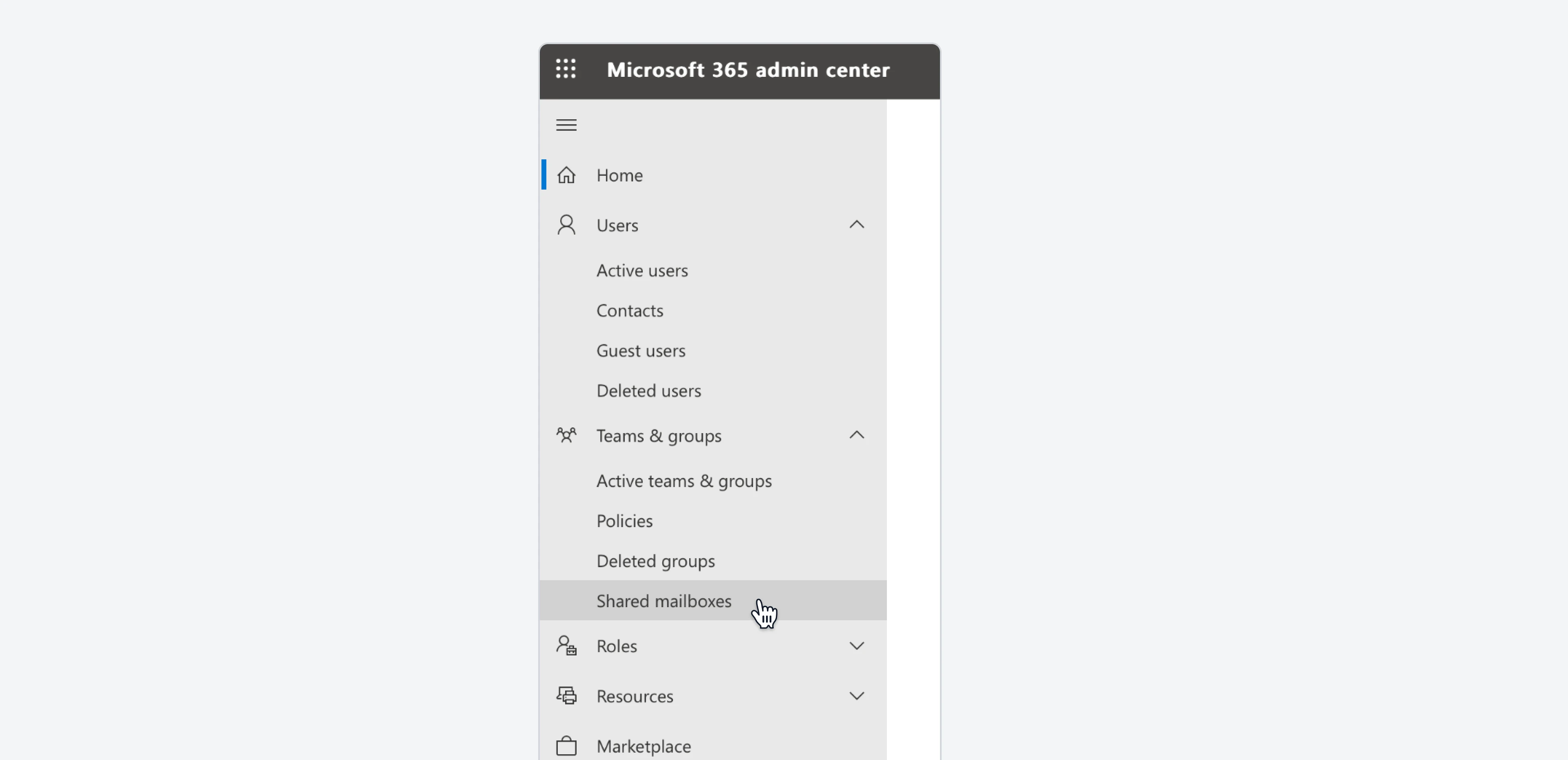
On the left sidebar, click on `Teams & groups`, and then on `Shared Mailboxes`.
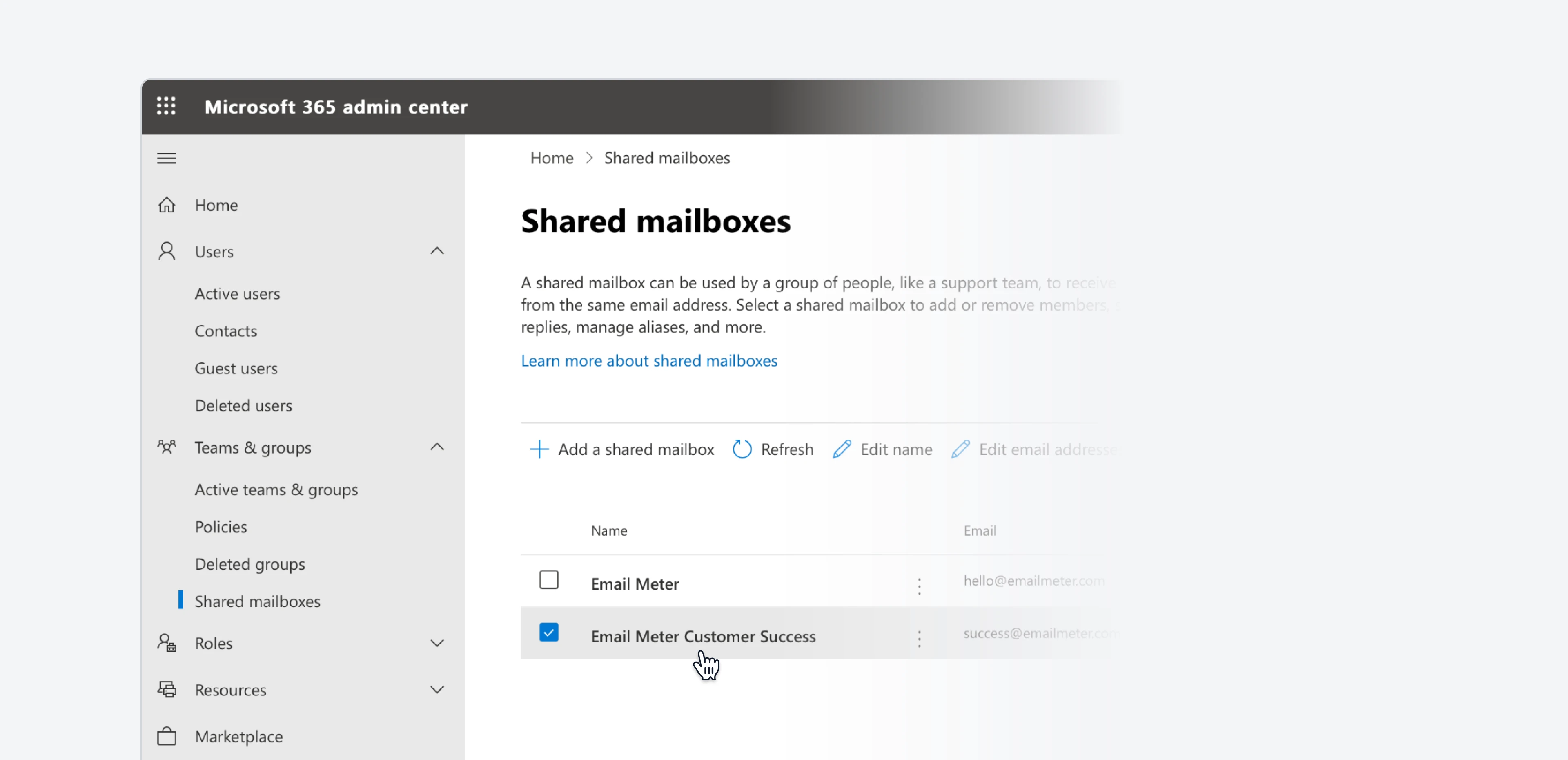
 Find the specific Shared Mailbox that you want to track with Email Meter, and click on it.
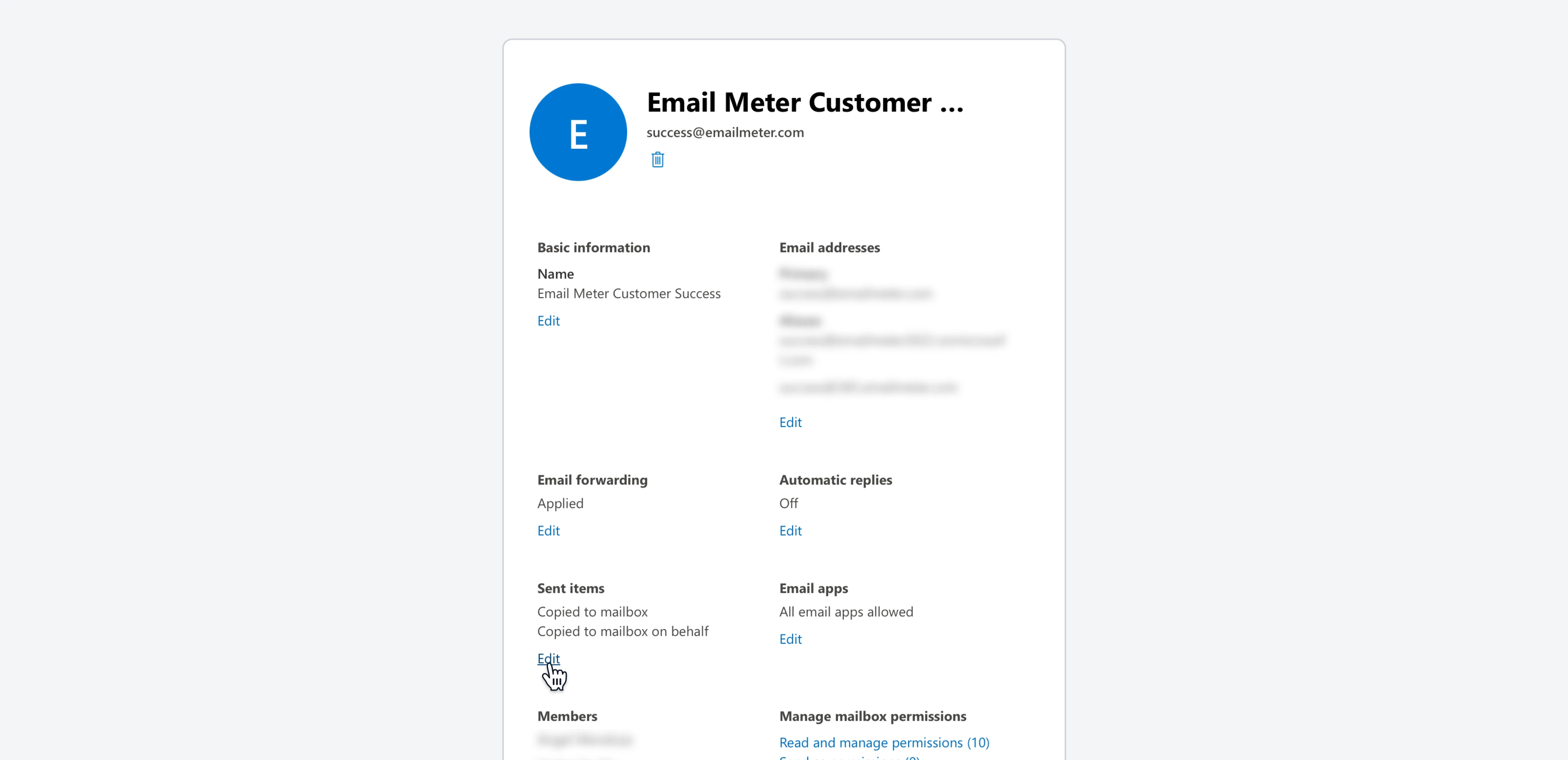
 A drawer will open on the right side of the screen. Locate `Sent Items` and click on `Edit`.
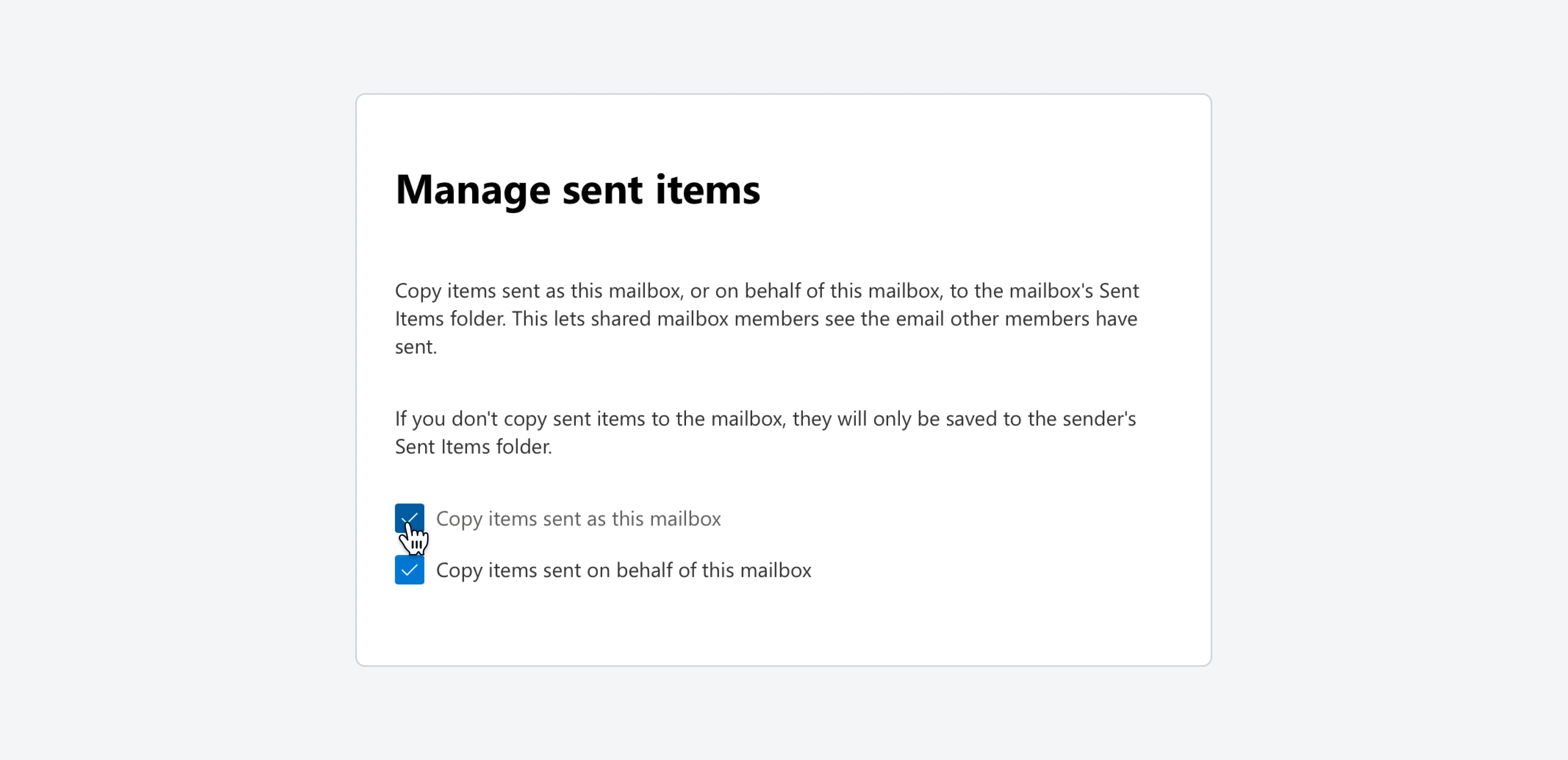
 Enable both `Copy items sent as this mailbox` and `Copy items sent on behalf of this mailbox`, then click `Save`.
 ## Additional steps
If your team is using Microsoft Outlook 2010 or a later version, you might need to configure additional settings.
Please refer to Microsoft's documentation [here](https://learn.microsoft.com/en-us/exchange/troubleshoot/user-and-shared-mailboxes/sent-mail-is-not-saved) for more details.
## Additional steps
If your team is using Microsoft Outlook 2010 or a later version, you might need to configure additional settings.
Please refer to Microsoft's documentation [here](https://learn.microsoft.com/en-us/exchange/troubleshoot/user-and-shared-mailboxes/sent-mail-is-not-saved) for more details.