> ## Documentation Index
> Fetch the complete documentation index at: https://docs.enterprise.emailmeter.com/llms.txt
> Use this file to discover all available pages before exploring further.
# Installation on Microsoft 365
> Install Email Meter on your Microsoft 365 domain
 Email Meter Enterprise needs to be installed on your domain. This means installation needs to be performed by an administrator, or any user with enough permissions to do this in the Microsoft admin center.
## Install on your Microsoft 365 domain
Click the following link to go to the Email Meter Enterprise application on your Microsoft 365 domain.
Click here to install the Email Meter application on your Microsoft 365 domain
You’ll be redirected to a Microsoft 365 login page.
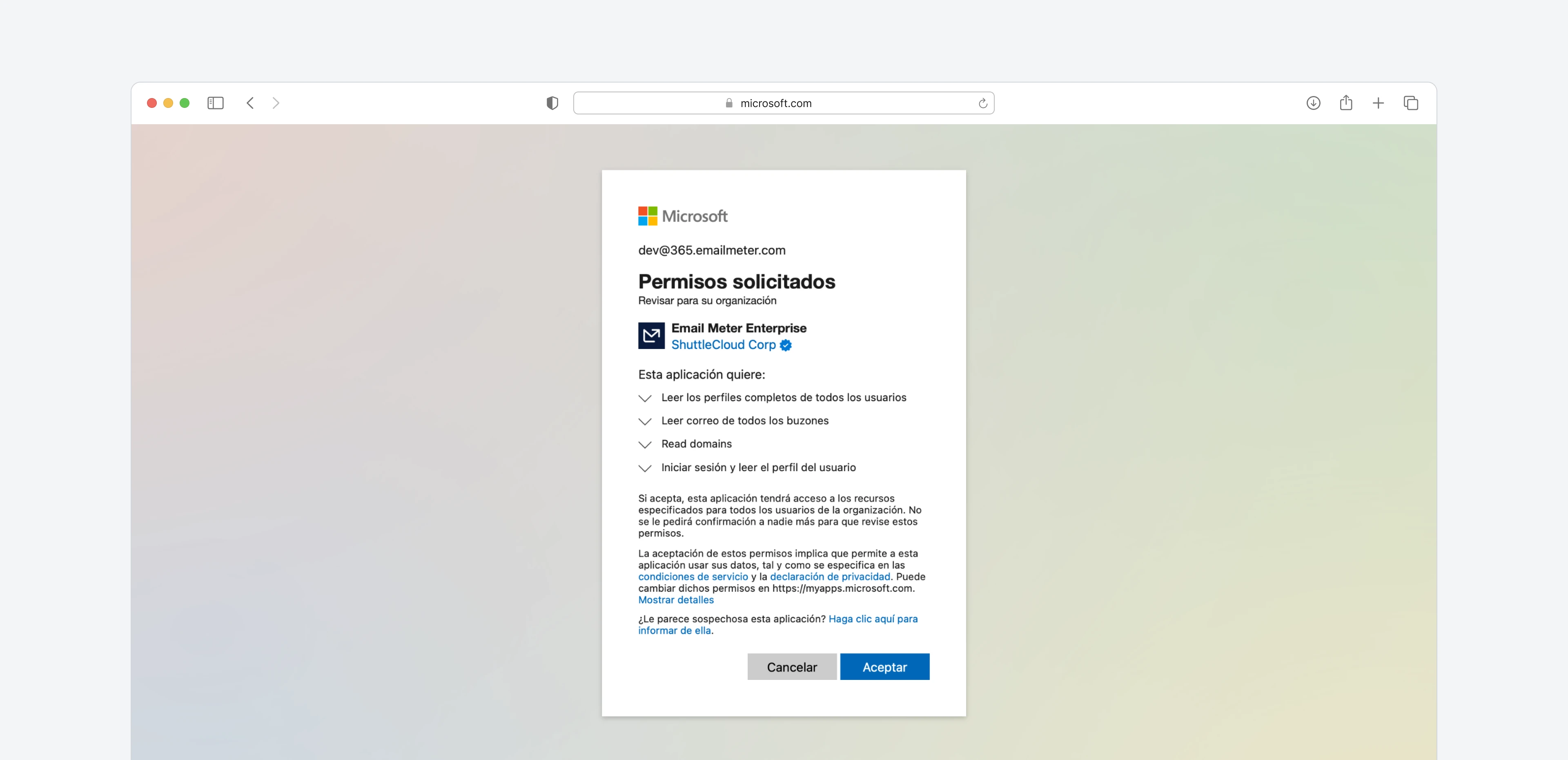
Sign in using a global admin account (or a user with a privileged administrator role) and accept the permissions on the consent screen.
Email Meter Enterprise needs to be installed on your domain. This means installation needs to be performed by an administrator, or any user with enough permissions to do this in the Microsoft admin center.
## Install on your Microsoft 365 domain
Click the following link to go to the Email Meter Enterprise application on your Microsoft 365 domain.
Click here to install the Email Meter application on your Microsoft 365 domain
You’ll be redirected to a Microsoft 365 login page.
Sign in using a global admin account (or a user with a privileged administrator role) and accept the permissions on the consent screen.
 You’ll be automatically redirected to an Email Meter page that confirms the installation.
You can restict Email Meter’s access to specific mailboxes by using mail-enabled security groups and an ApplicationAccessPolicy. You can read more about it [here](/onboarding/restrict-access/microsoft).
That’s it! Email Meter Enterprise is now installed on your domain.
## Submit the onboarding form
Once the application is installed, you’ll need to fill out the onboarding form.
Click here to go to the onboarding form
In the onboarding form, you will be asked to provide information such as the mailboxes that need to be tracked, the users that need access to see email statistics, the level of access they should have, business hours, timezone and other relevant settings.
Our team will be automatically notified and will start building your custom email statistics dashboard.
You’ll be automatically redirected to an Email Meter page that confirms the installation.
You can restict Email Meter’s access to specific mailboxes by using mail-enabled security groups and an ApplicationAccessPolicy. You can read more about it [here](/onboarding/restrict-access/microsoft).
That’s it! Email Meter Enterprise is now installed on your domain.
## Submit the onboarding form
Once the application is installed, you’ll need to fill out the onboarding form.
Click here to go to the onboarding form
In the onboarding form, you will be asked to provide information such as the mailboxes that need to be tracked, the users that need access to see email statistics, the level of access they should have, business hours, timezone and other relevant settings.
Our team will be automatically notified and will start building your custom email statistics dashboard.