> ## Documentation Index
> Fetch the complete documentation index at: https://docs.enterprise.emailmeter.com/llms.txt
> Use this file to discover all available pages before exploring further.
# Overview
> Welcome to Email Meter Enterprise
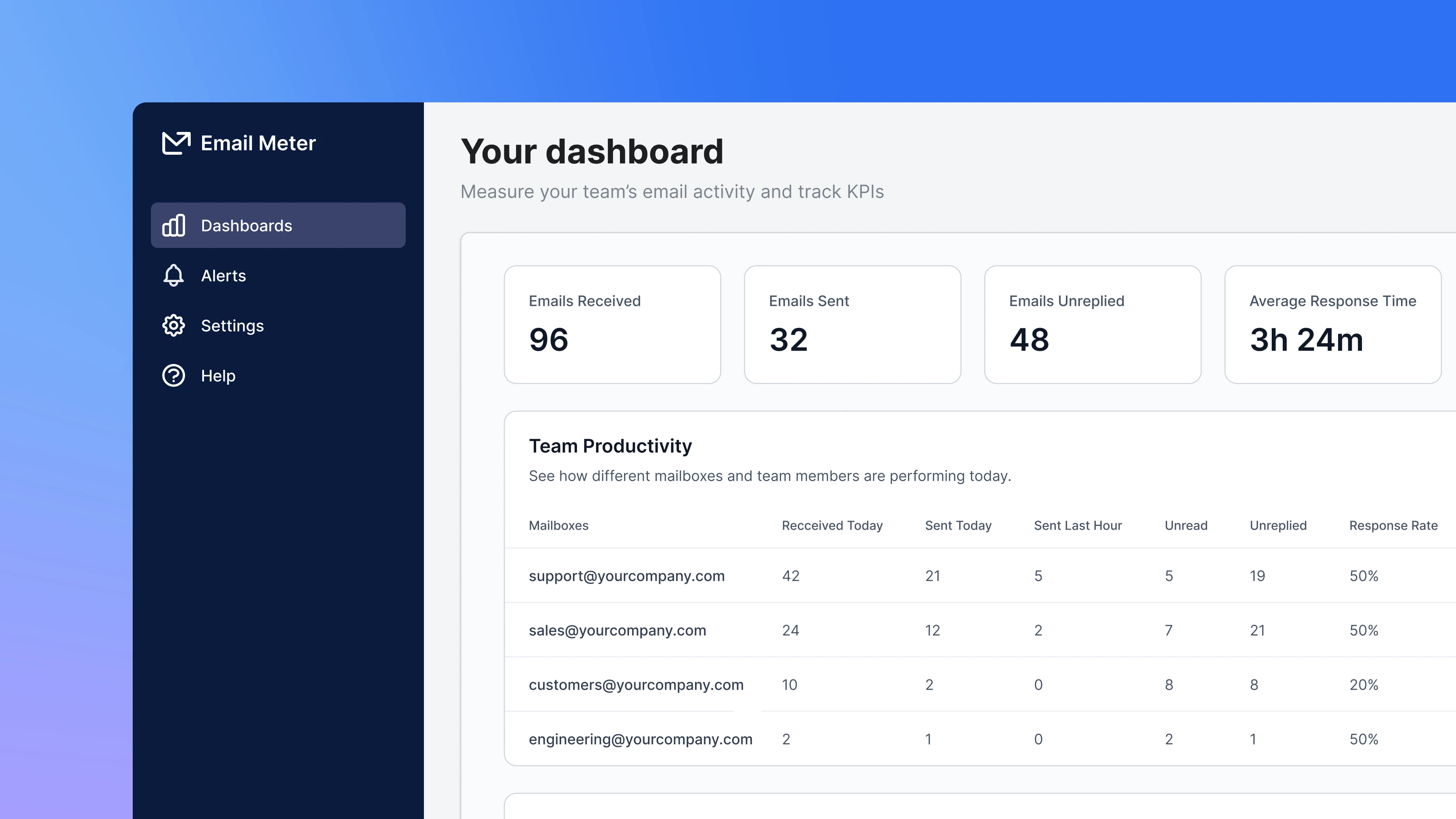 ## Installation and onboarding
The first step to get started with Email Meter is to install the application on your domain so we can connect to your mailboxes to start generating email statistics.
Follow this guide if you're using Google Workspace
Follow this guide if you're using Microsoft 365
## Set up your workspace
Learn about Email Meter Enterprise's basic features and kickstart your workspace.
Manage the mailboxes you're tracking email statistics for
Manage who can see email statistics
Ensure metrics are aligned with your team's schedule
Prevent slow responses and missed emails
## Installation and onboarding
The first step to get started with Email Meter is to install the application on your domain so we can connect to your mailboxes to start generating email statistics.
Follow this guide if you're using Google Workspace
Follow this guide if you're using Microsoft 365
## Set up your workspace
Learn about Email Meter Enterprise's basic features and kickstart your workspace.
Manage the mailboxes you're tracking email statistics for
Manage who can see email statistics
Ensure metrics are aligned with your team's schedule
Prevent slow responses and missed emails