> ## Documentation Index
> Fetch the complete documentation index at: https://docs.enterprise.emailmeter.com/llms.txt
> Use this file to discover all available pages before exploring further.
# Power BI
> Create your own email analytics reports in Power BI
 The [Power BI](https://www.microsoft.com/en-us/power-platform/products/power-bi) integration allows you to connect directly to your Email Meter data to create custom reports and dashboards using your email analytics data.
## Requirements
Before you can analyze Email Meter's data using Power BI, please make sure you have:
* Power BI Desktop installed on your computer
* A Google account
* A Google Cloud Platform project with billing enabled
* Access to your Email Meter dataset in [BigQuery](/integrations/bigquery)
## Instructions
### Add the data source in Power BI
Launch the Power BI Desktop application in your computer, and click on the `Get data` option in the top menu bar.
The [Power BI](https://www.microsoft.com/en-us/power-platform/products/power-bi) integration allows you to connect directly to your Email Meter data to create custom reports and dashboards using your email analytics data.
## Requirements
Before you can analyze Email Meter's data using Power BI, please make sure you have:
* Power BI Desktop installed on your computer
* A Google account
* A Google Cloud Platform project with billing enabled
* Access to your Email Meter dataset in [BigQuery](/integrations/bigquery)
## Instructions
### Add the data source in Power BI
Launch the Power BI Desktop application in your computer, and click on the `Get data` option in the top menu bar.
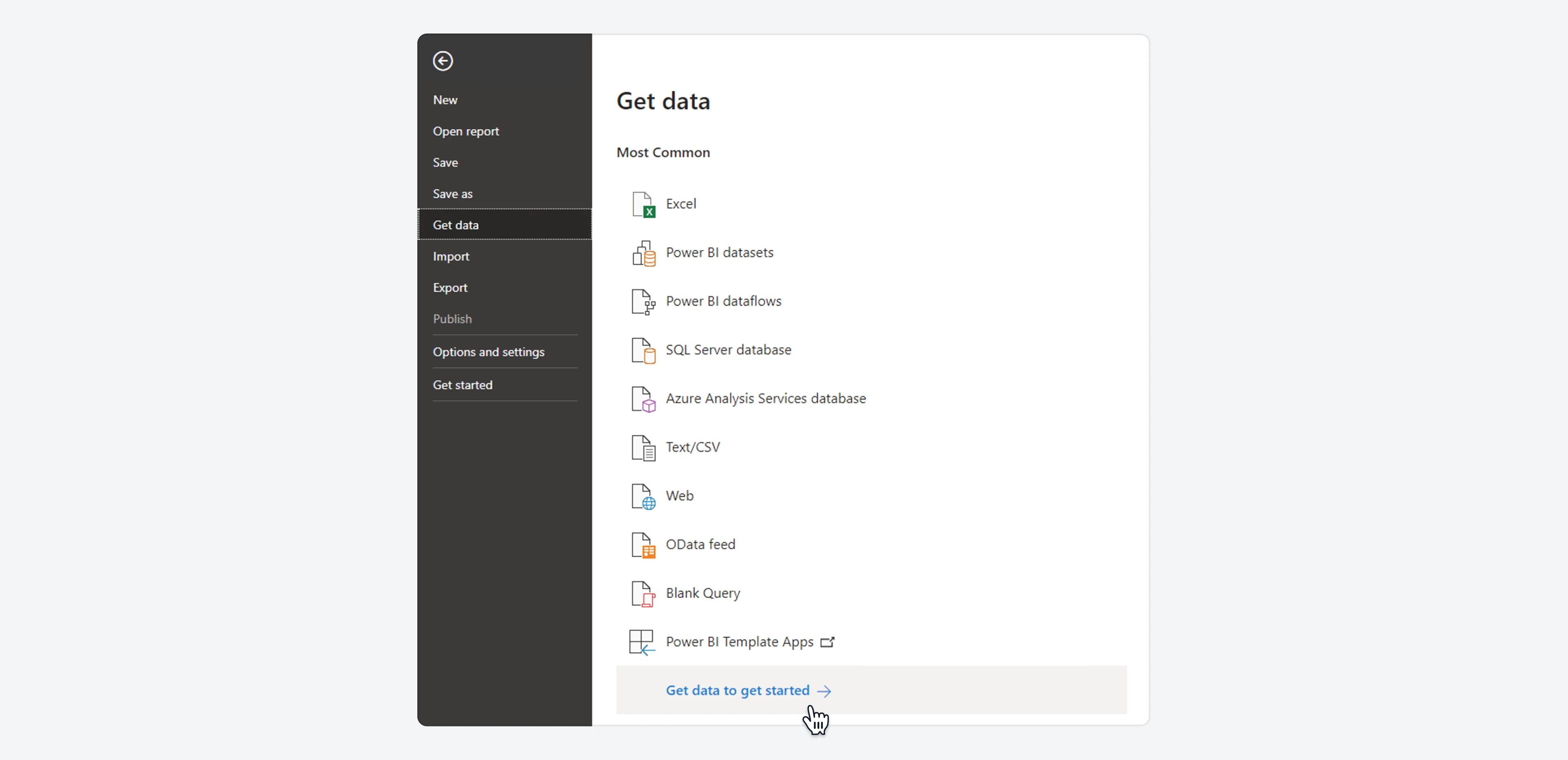
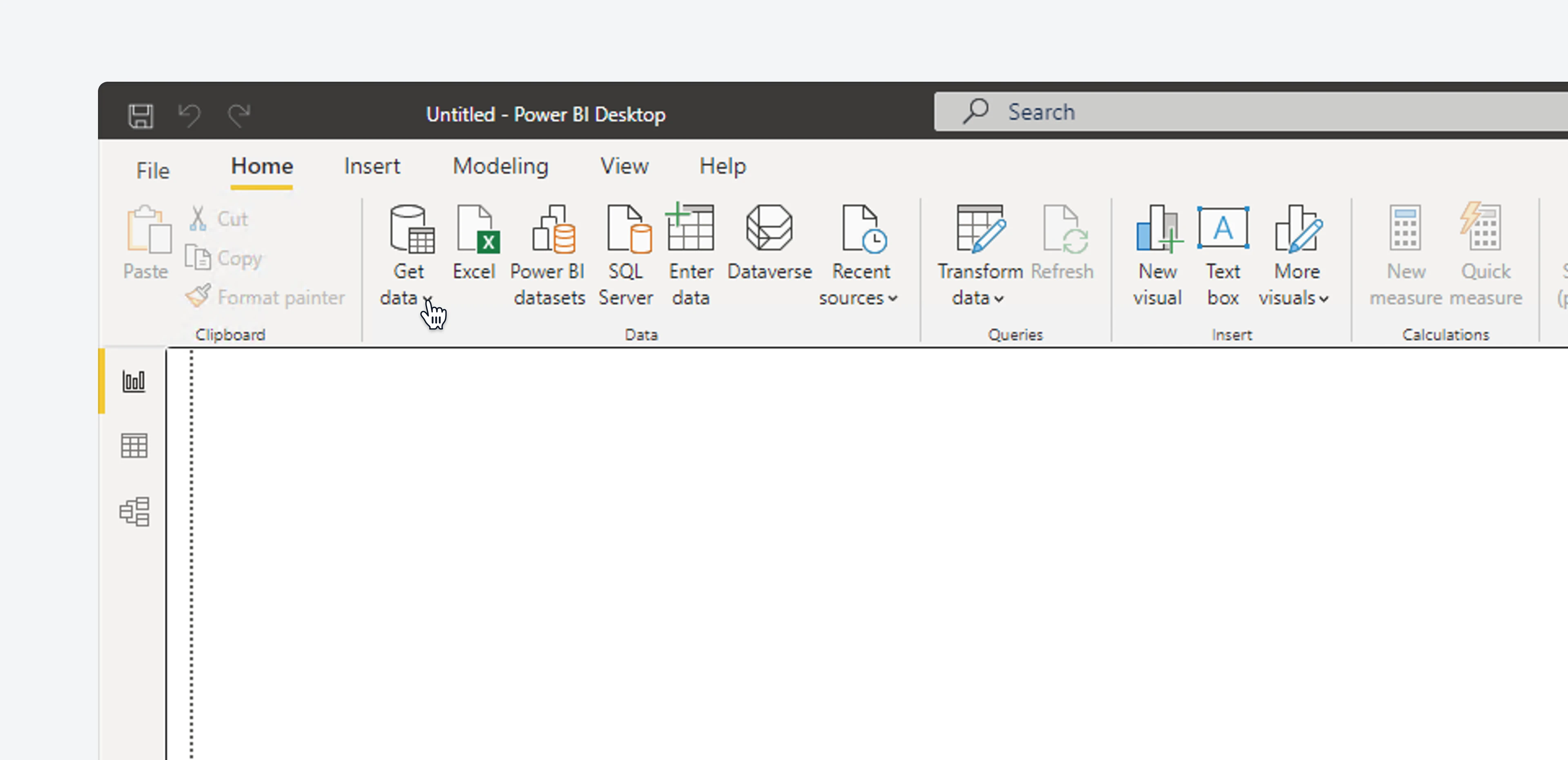 If this option isn't visible, go to `File > Get data` and click on `Get data to get started`.
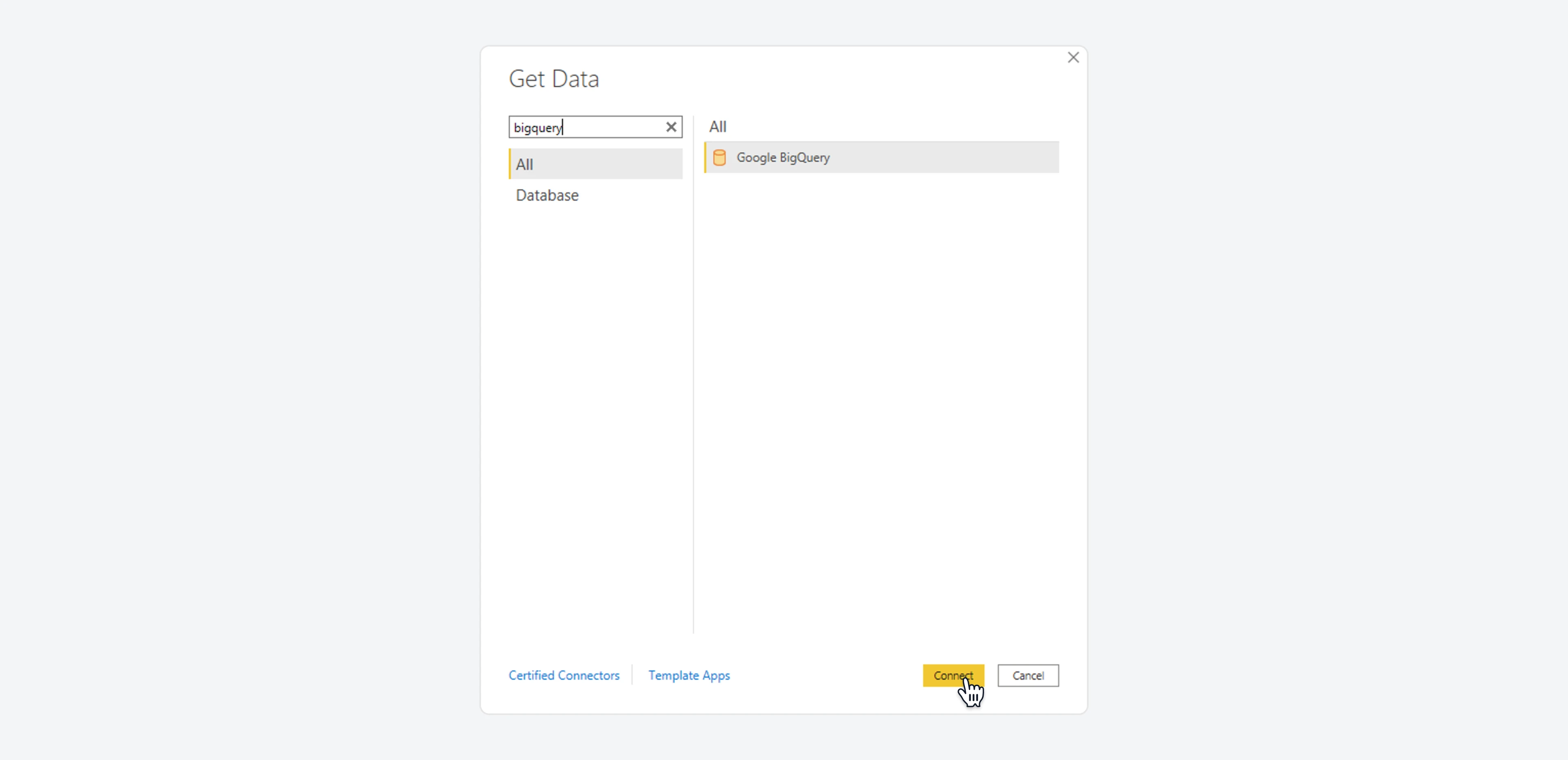
 A modal will now open. Use the search bar to find `BigQuery`. Now, select `Google BigQuery` from the list and click on the `Connect` button.
 ### Connect to BigQuery
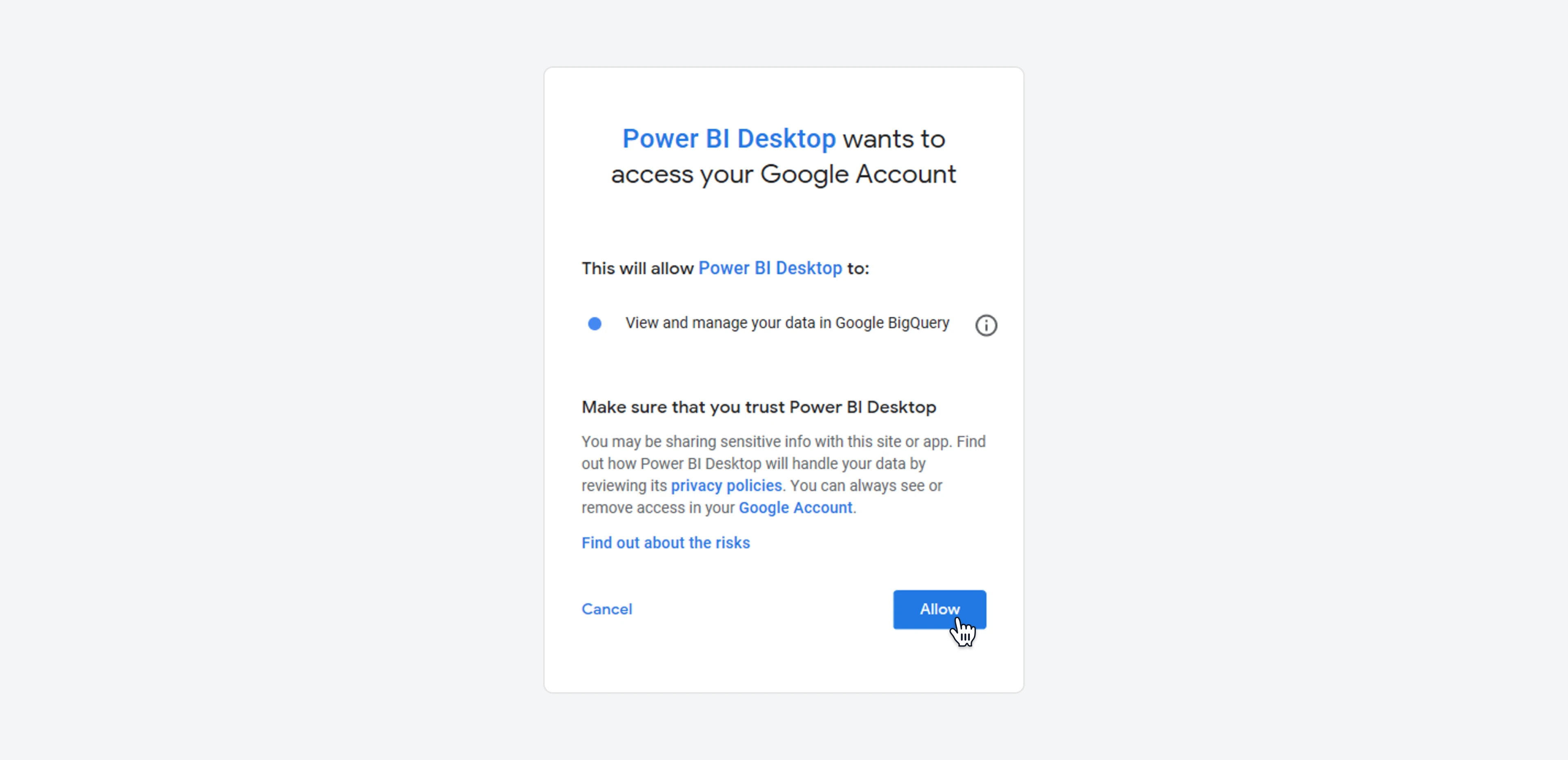
Now, you will be prompted to `Sign in with Google`.
Just enter your email and password and confirm the connection when asked.
### Connect to BigQuery
Now, you will be prompted to `Sign in with Google`.
Just enter your email and password and confirm the connection when asked.
 ### Choose your dataset
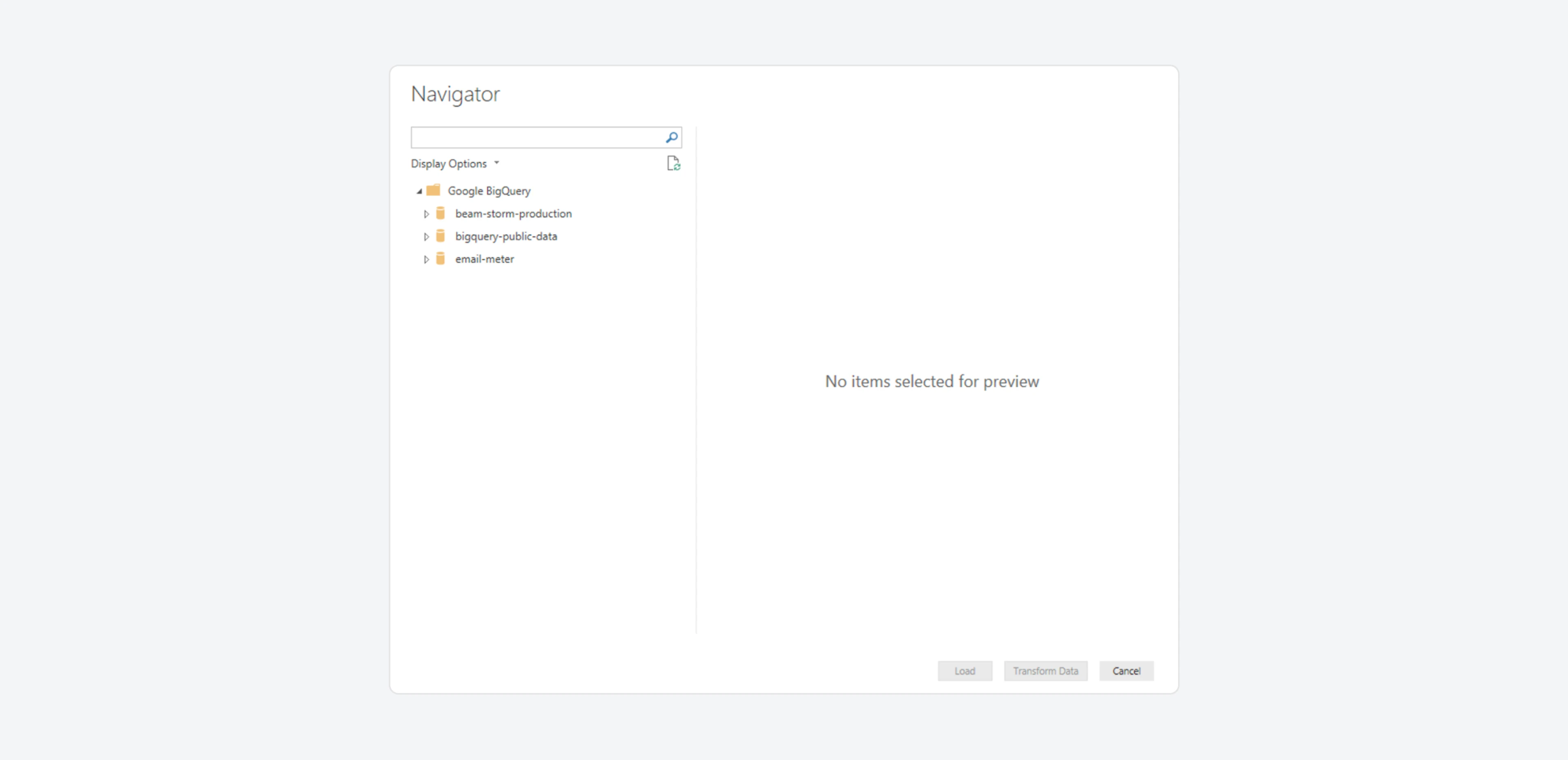
Once connected, you will see a list of the datasets and tables that you can access in BigQuery.
Find your Email Meter dataset, select it and click the `Load` button.
### Choose your dataset
Once connected, you will see a list of the datasets and tables that you can access in BigQuery.
Find your Email Meter dataset, select it and click the `Load` button.
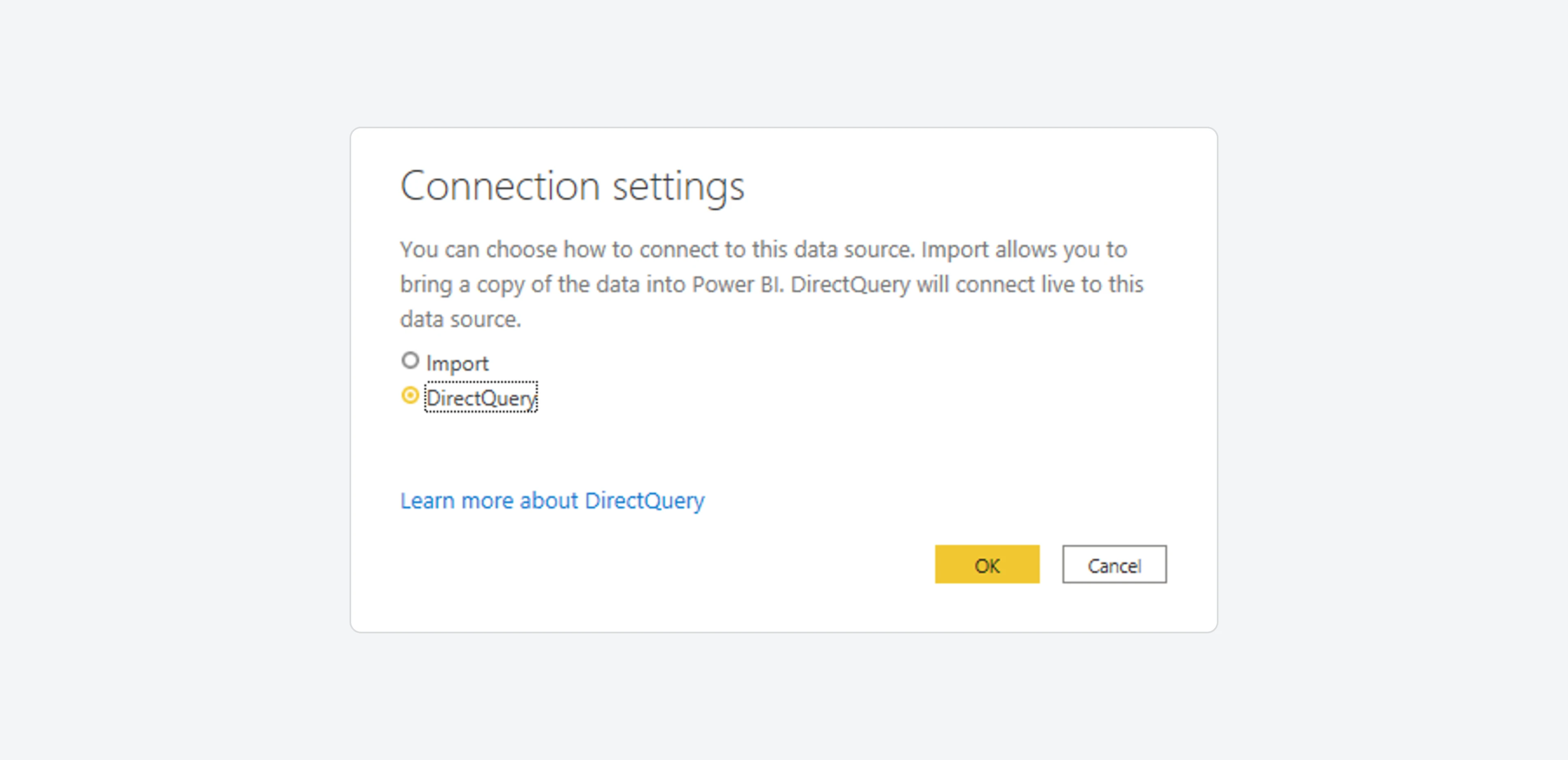
 When asked, choose `DirectQuery` as the connection method.
 ### Create your Power BI report.
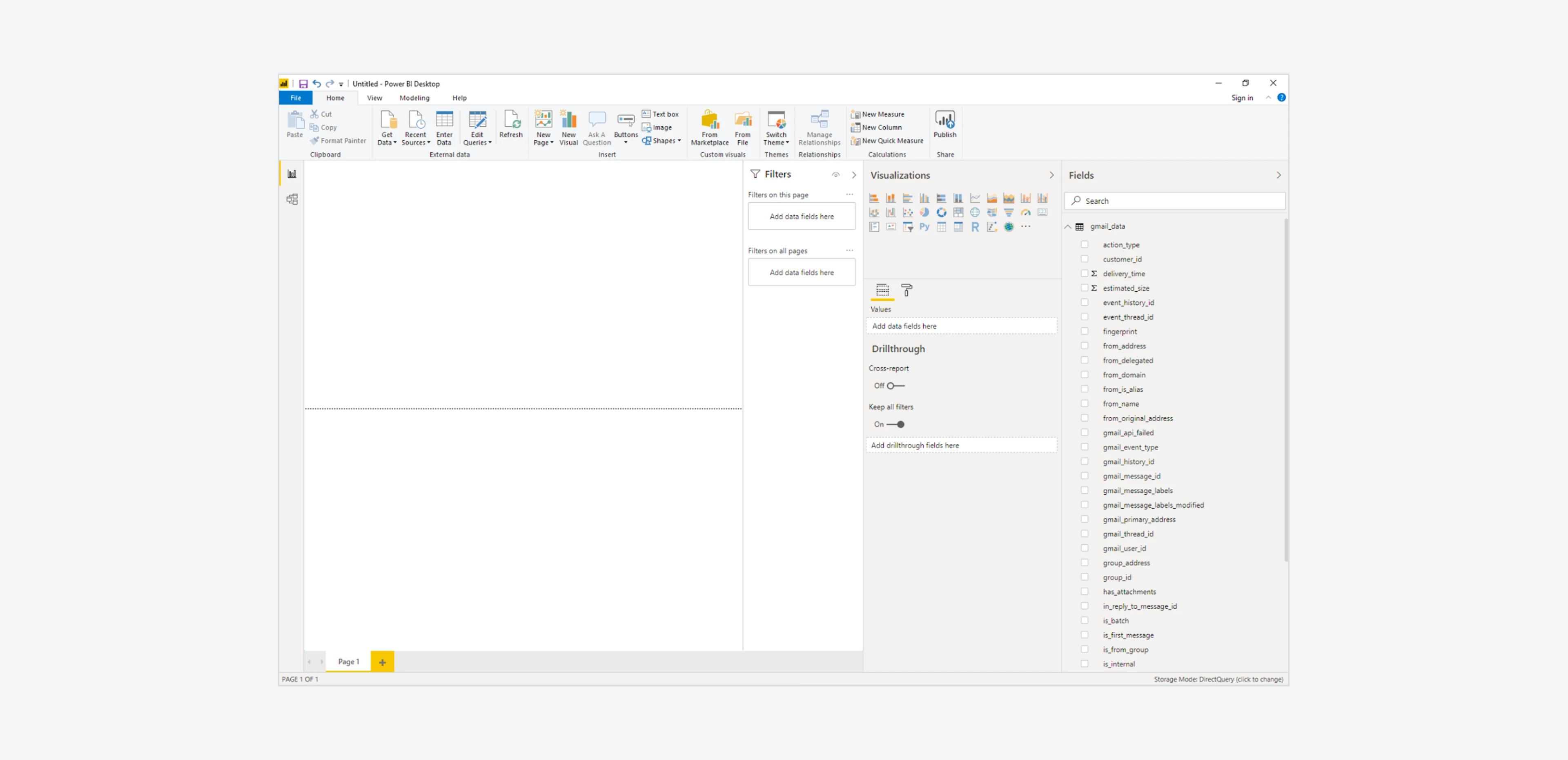
You can now design your custom Power BI report using Email Meter's data.
### Create your Power BI report.
You can now design your custom Power BI report using Email Meter's data.
 We also offer a pre-built Power BI template that includes most of the common metrics and use case, so you can use it as a starting point to create your own report.
If you're interested in this, please reach out to your Business Intelligence Consultant for more information.
We also offer a pre-built Power BI template that includes most of the common metrics and use case, so you can use it as a starting point to create your own report.
If you're interested in this, please reach out to your Business Intelligence Consultant for more information.